 Momen
Momen Every release, from the start.
0.10.3 A new button is ready to name latest 7 October 2026
One small ask from the testers for the Coding board.
A new button is ready to name
On the Coding board, a new button (Add new button, or right-click the board > Add a tag here) is selected with its name box ready, the name already highlighted. Just type the name of the tag, no need to click the name box first.
0.10.2 Search per column and smoother drawing 7 October 2026
Three asks from the testers: a search per column in the describe window, moving through the clip while drawing, and Space playing the clip in the drawing view.
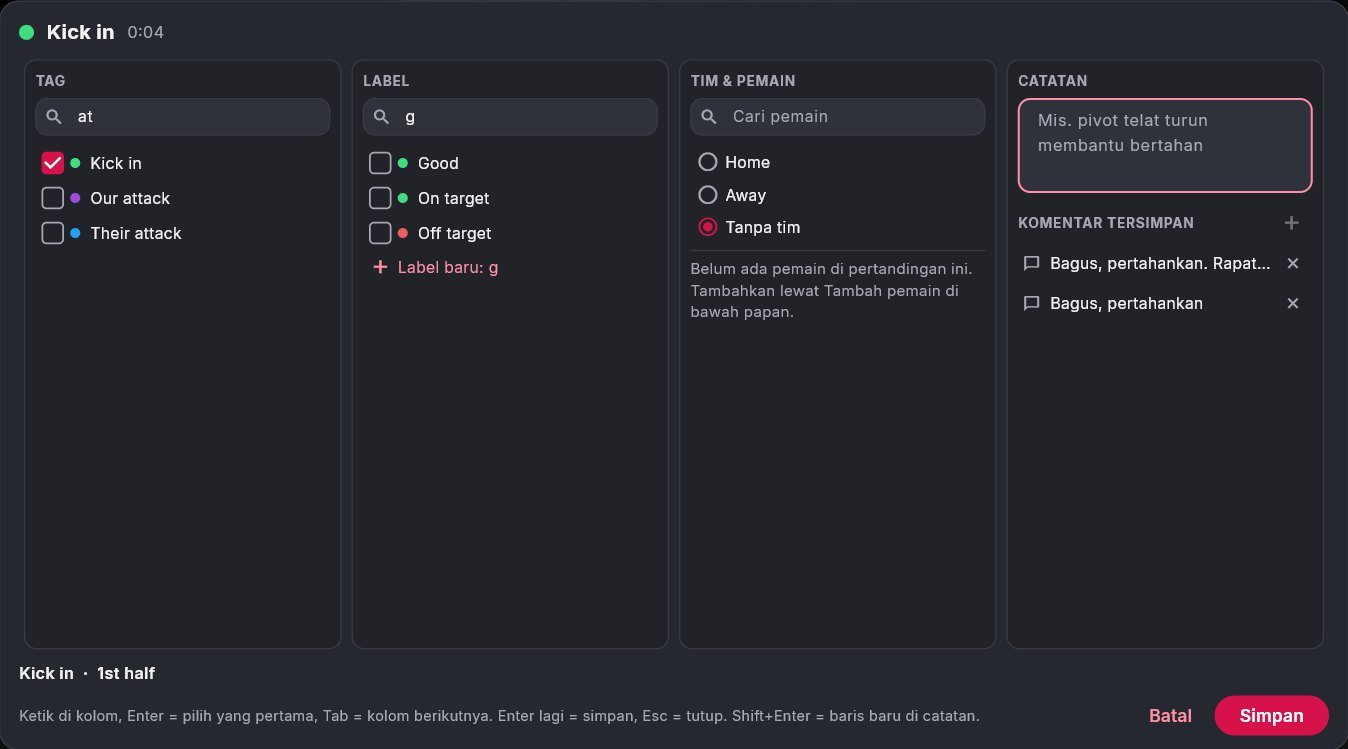
Search per column in the describe window 1
The Tags, Labels and Team & players columns now each have their own search. It all works from the keyboard: type in a column, Enter picks the first match and moves to the next column, Tab changes column, and Enter on an empty search saves (or makes the clip). Letters typed outside any box go to the column in use.
Move through the clip while drawing
While drawing, ← and → (with Shift: 5 frames) or a click on the clip bar in Drawing layers move the drawing to another frame of its clip. Ctrl+Z moves it back. A drawing that uses its frame's own picture (moved player, zoom, run) stays on its frame.
Space plays the clip in the drawing view
Space (or Play clip) now plays the clip right in the big drawing view instead of going back to the tagging screen. At the clip's end, or on Space / Esc, the video stops on the drawing's frame and you can draw again straight away.
0.10.1 Simpler drawings 7 October 2026
Drawings no longer animate unless you ask: they last the clip, and Space plays the result straight away.
Drawings last the clip, with no animation 2
A new drawing now shows from its frame to the end of the clip while the video keeps playing, and every shape appears at once. The clip's length from its tag is the drawing's length, so there is no timing to set.
Want the video to stop first to explain it? Drag Video stops, or drag the pink line in Drawing layers out from the start. The white line is the end of the drawing. Drawings made before stay as they were.
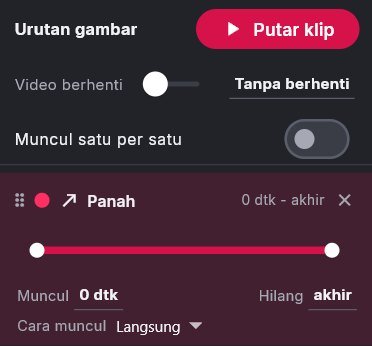

Space plays the clip with its drawings
While drawing, press Space (or Play clip) to test it: the clip plays from its start with every drawing, exactly as it will in review, in Presentation and in exported clips. At the clip's end you are back drawing on the same frame. Space or Esc while it plays goes straight back.
More drawing fixes
- Presentation now shows drawings that stay while the video plays, not only those that stop it.
- A drawing on a clip's first frame now stops the video too, and pressing play right on a drawing's frame shows its stop first.
- Draw from outside a clip now opens where the tag was pressed, not the seconds before it.
- Move player still stops the video for a moment, because the player is cut out of the still frame.
0.10.0 Tagging without the mouse, your own shortcuts, and drawing layers 7 October 2026
Momen now works fully from the keyboard, like Premiere: mark a range with I and O, describe it with Alt+U, and change any shortcut you like. The Coding board feels like a desktop app, and drawings belong to their clip.
Tagging without the mouse: I, O, then Alt+U 2
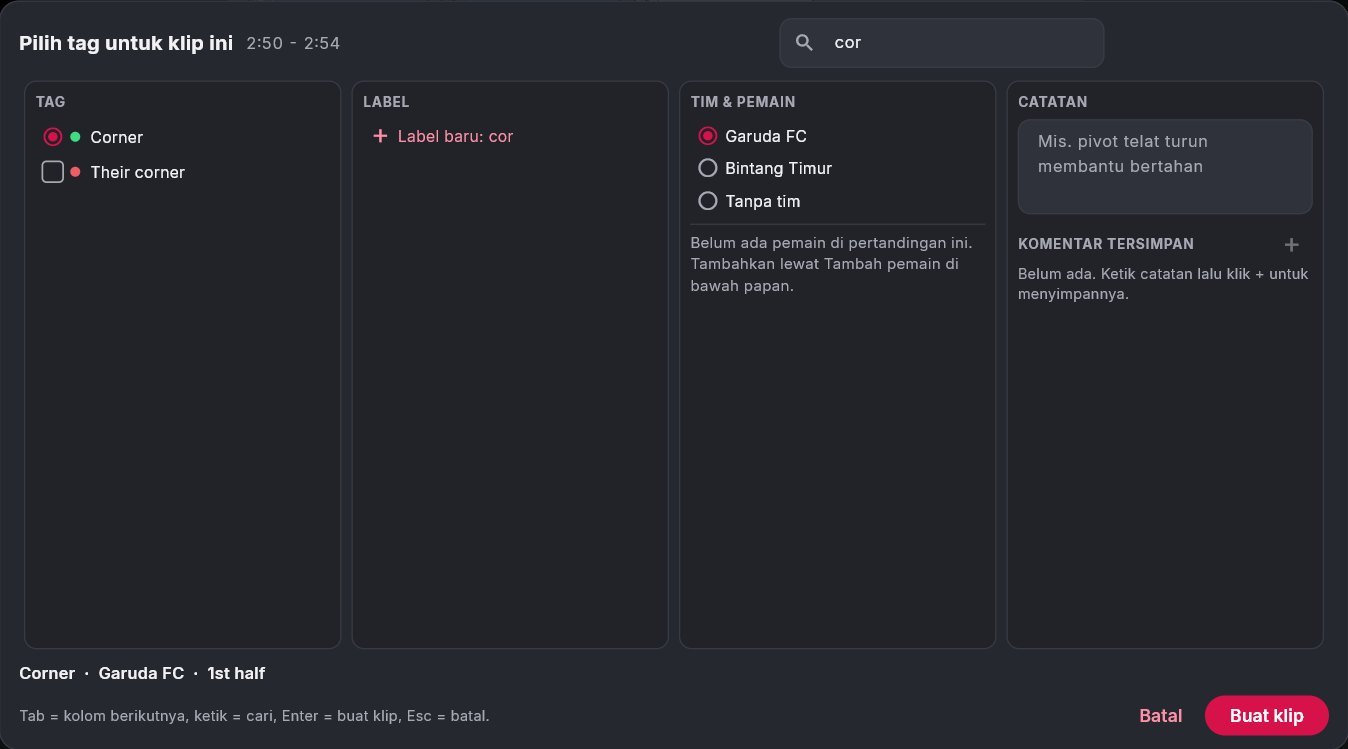
Mark the moment with the keyboard, as in Premiere: I at the start, O at the end. The range shows on the timeline, not a clip yet. Then Alt+U: type part of a tag name (for example "cor") and press Enter, or pick labels, the team, players and a note first. The clip is made on exactly that range, and one Ctrl+Z takes it back.
Moving the selected clip's start or end is now Alt+I and Alt+O. Esc steps back one thing at a time: the running tag, the I/O range, then the selected clip.

Describe any time 1
Double-click a clip, in the clip list or on the timeline, to describe it. The Describe button on the toolbar opens the window after every tag. While it is open the video pauses; a live camera recording never stops.
New labels can be typed right in the window (they are not put on the Coding board). Notes you use often can be kept as saved comments and used again with one click. A line at the bottom sums up the clip.

Team focus 1
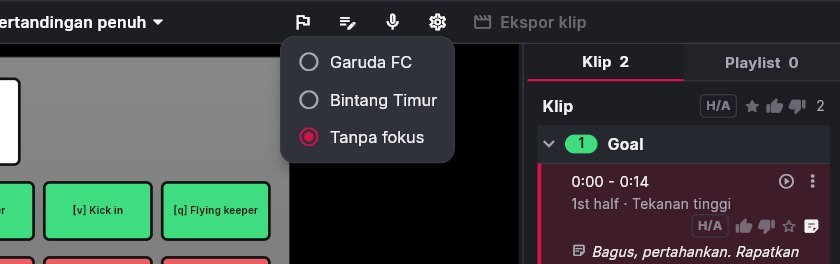
The flag on the toolbar: pick the home or away team, and every new tag from this laptop is for that team, with no extra click. Two laptops can split the work: one home, one away, merged later.
Change any shortcut 1
Help > Shortcuts: click the keys beside an action, then press the new ones. If those keys are taken, Momen asks before moving them. Every change can be put back. Board keys can be changed here too.
- On a MacBook, Cmd now works like Ctrl: Cmd+Z, Cmd+S, Cmd+M and the rest.
- Typing in Find a tag no longer tags. Ctrl+F jumps there, Enter presses the tag found, Esc clears it.
- Ctrl+S, Ctrl+O and the shortcut list now work on every tab.

A Coding board that works like a desktop app 1
Pick a button on the Coding board, then: Ctrl+C and Ctrl+V to copy it (to another board too), Ctrl+X to cut, Ctrl+D to duplicate, Delete to remove. The arrows move it (Shift: further, Alt: resize), Tab goes to the next button, F2 or Enter renames.
Right-click a button for all of these with their keys. Right-click the empty board: add a tag or label right there, or paste.

Change a button's key from the board 1
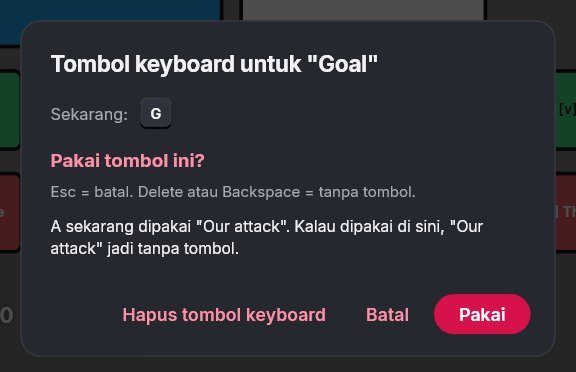
Right-click a button on the board or a tag in the list on the left, choose Change keyboard key, and press the key. If another button or a shortcut uses it, Momen asks first. Esc cancels, Delete leaves the button without a key. Ctrl+Z puts it back.
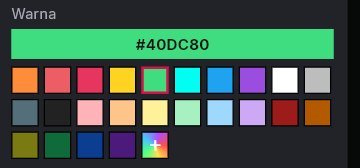
More colours, or any colour 2
Twice as many button colours to pick from. The + at the end opens More colours: pick any colour in the colour square, or type its hex code.

Copy labels from clip to clip 1
Pick a clip, Ctrl+C: its labels, players and team are copied. Pick one or more other clips, then Ctrl+Alt+V: all of it lands at once, and one Ctrl+Z takes it back. A clip's right-click menu now starts with Describe, copy and paste, with their keys beside them.
On the Playlist tab, Delete now only takes the clip out of the playlist; it stays in the match.

Drawings belong to a clip, in layers 1
A drawing now belongs to a clip: pick the clip, then Draw. If the video is outside that clip, Momen goes to its start. Below the video, Drawing layers shows the clip and one row per shape. Drag a middle to move it, its ends for when the shape comes and goes, and the pink line for how long the video stops.

A grey look and more 1
- The app is now a dark grey like Premiere, less black, with the same red accents.
- The Voice button is now called Voice note; its settings are behind the gear.
- Export clips shows each clip's progress and the time left.
0.9.1 The guide opens in the browser 6 October 2026
One fix for Momen on Windows.
Help > Guide opens the browser
In 0.9.0 for Windows, Help > Guide opened the Documents folder by mistake. It now opens the guide in the browser, signed in with your account. Momen on a MacBook was not affected.
0.9.0 A new menu, your sport, and voice notes 6 October 2026
Momen now works like the analysis tools you know: a menu at the top, projects, your own sport, and notes you just say out loud.
A new menu and projects 2
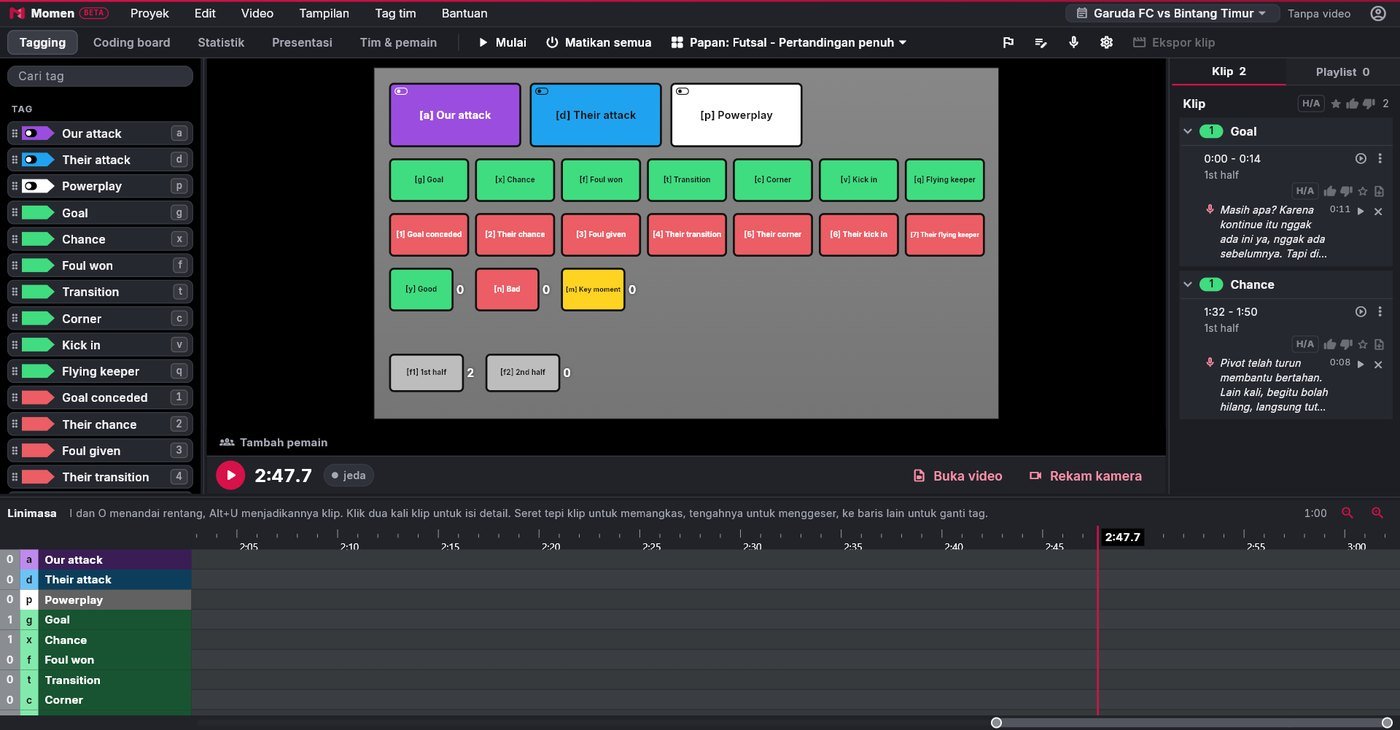
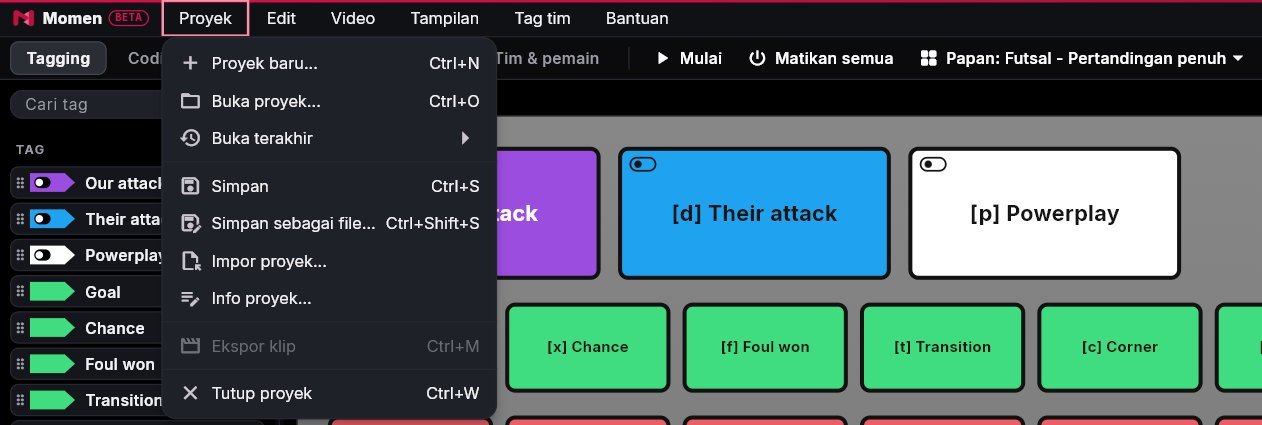
Every button moved into the menu at the top: Project, Edit, Video, View, Team tags and Help. The old left panel is gone, so the screen has more room. Your account and licence sit at the top right.
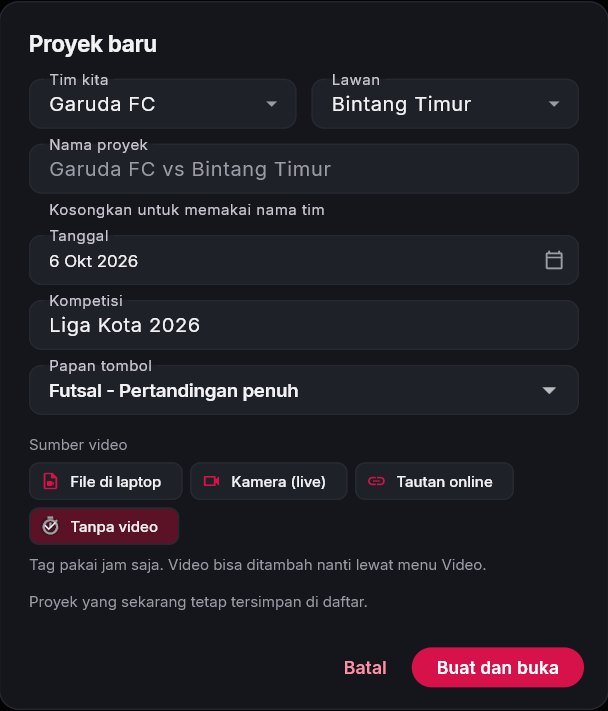
New project, open, save (Ctrl+S), save as (Ctrl+Shift+S) and close. A new project asks where its video comes from: a file on the laptop, a live camera, a video link, or no video. There is also a Competition field to group matches.
Pick your sport 1
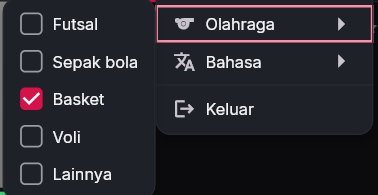
The first time it opens, Momen asks your sport: futsal, football, basketball, volleyball or another. The button boards, the court size for drawings and the name of the start button (Kick-off, Tip-off or First serve here) follow it. Change it any time in the account menu, under Sport. Old boards never disappear.
Every board at a glance 1
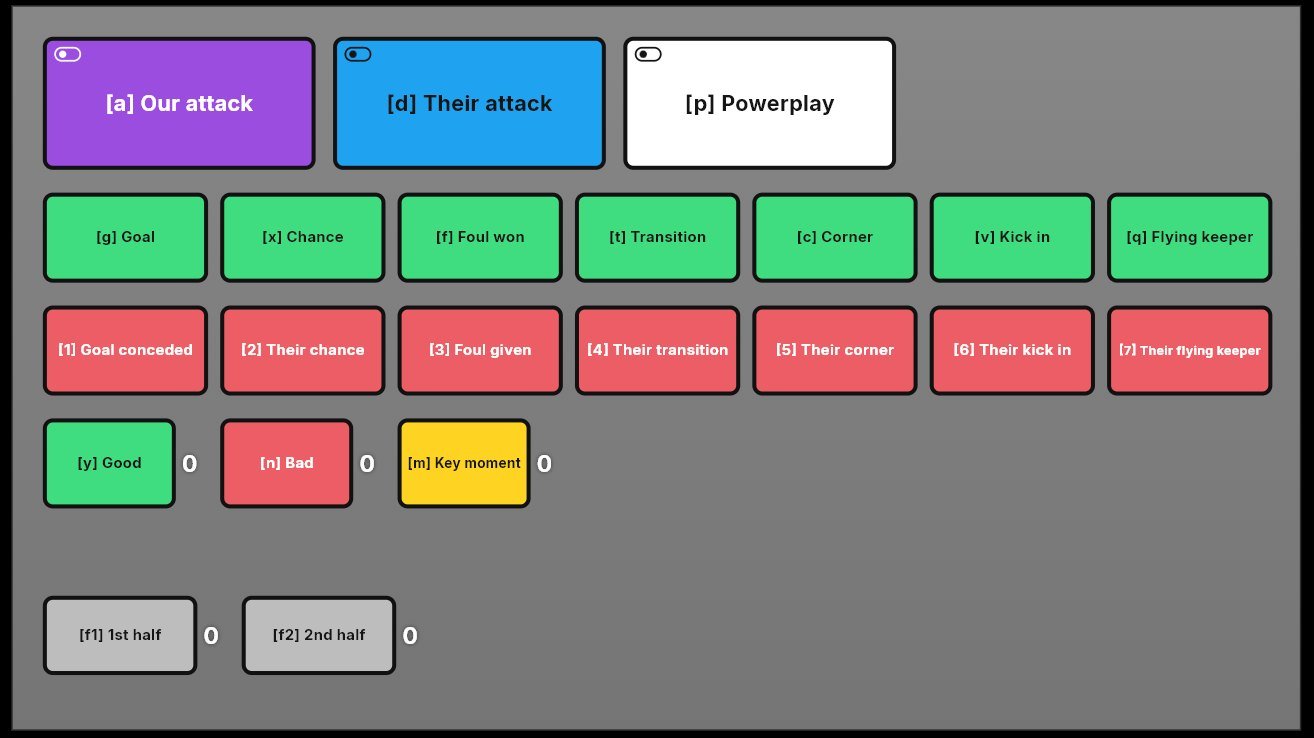
The Coding board tab shows every board as a small picture on the left. Click one to use it. Buttons now have slightly rounded corners.

Period buttons 1
The built-in boards have one button per period: 1st half and 2nd half (F1, F2), Q1 to Q4 for basketball, Set 1 to Set 5 for volleyball. At the break, press the next period: new clips get that label by themselves, also when pressed from a phone. Clips from the period before stay as they are. Older boards with a 1st half get a 2nd half by themselves.
Linked tags 1
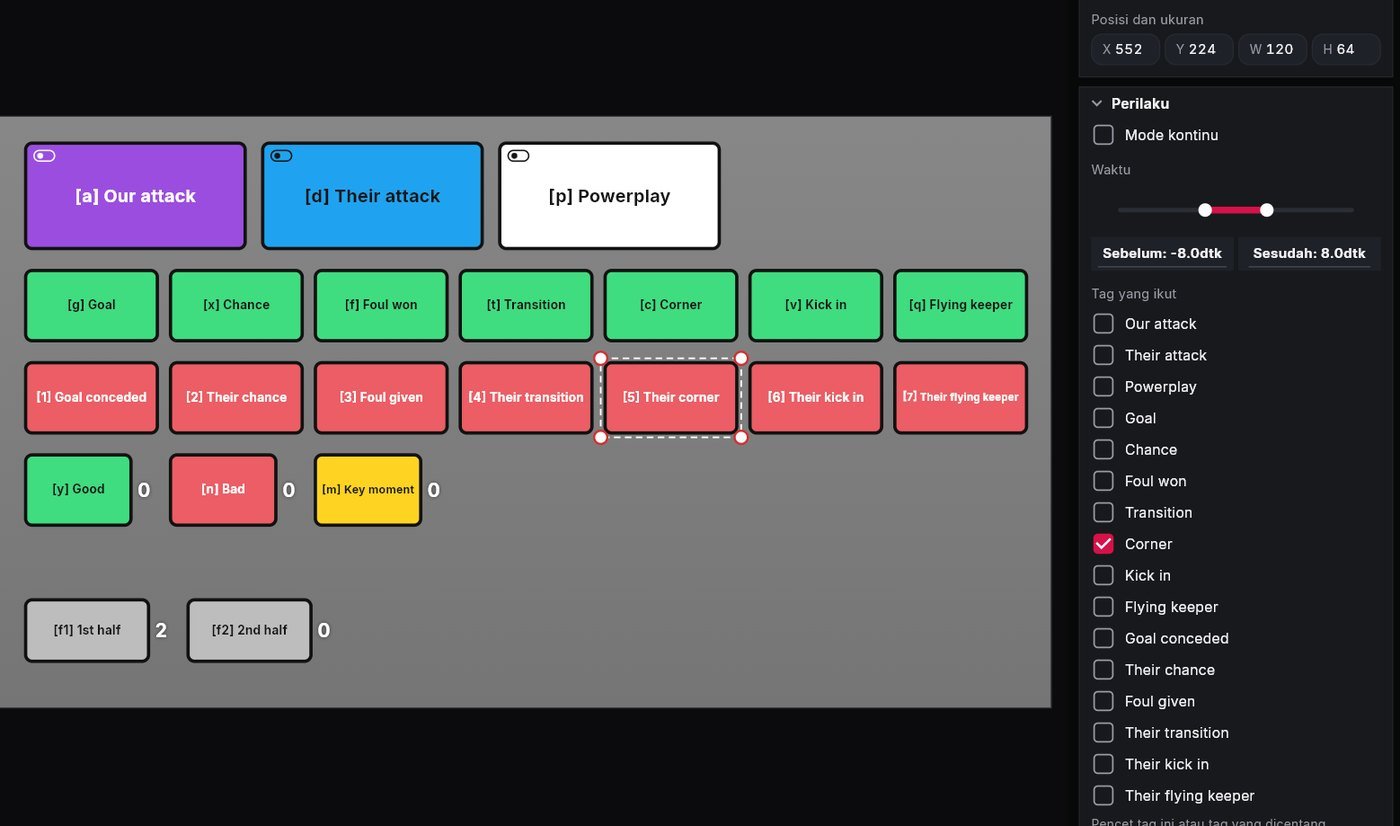
One press can make two clips at once, on the same seconds, for opposite teams. For example our corner and their corner, or one team's attacking kick in and the other team's defending kick in. Set it up in Coding board: pick the button, then tick tags under Linked tags. Labels pressed afterwards go on both clips, and one Ctrl+Z undoes both.
Describe after each tag 1
When a tag finishes, a small window opens to add other tags, labels, the team, players and a note in one go. Enter saves, Esc closes without changes. Switch it on or off in the View menu.
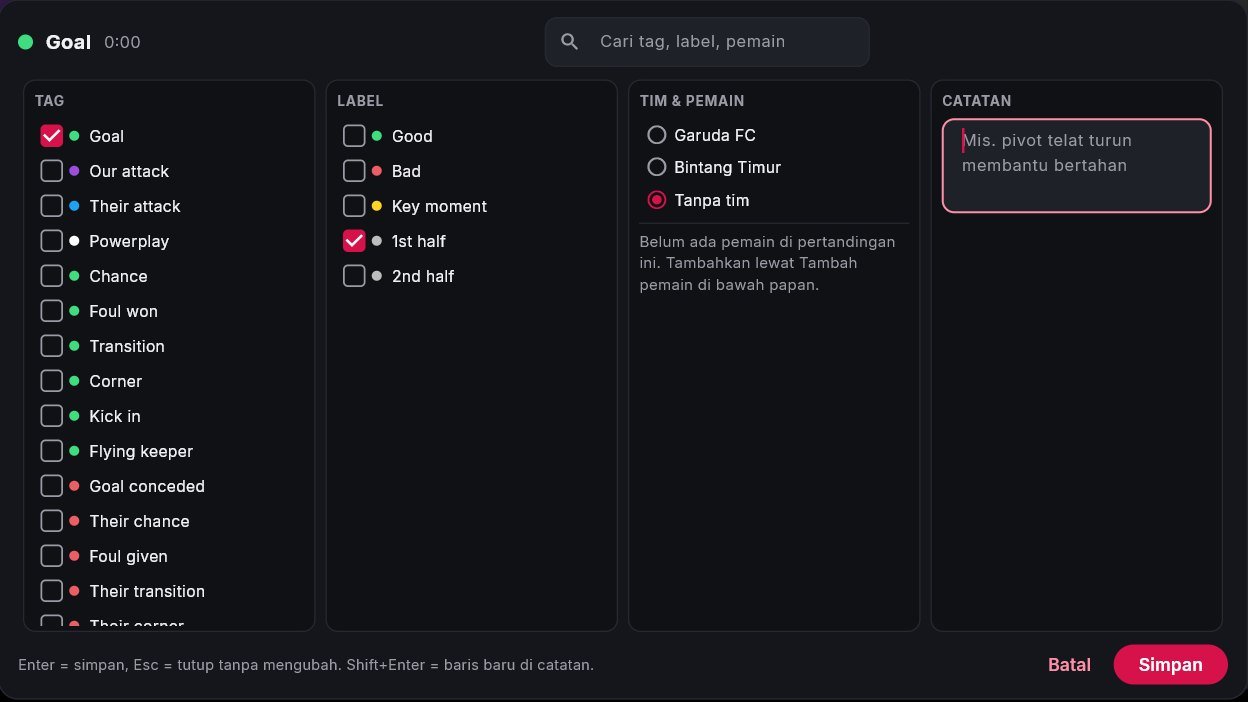
Voice notes 2
Hold the ` key (below Esc) or click Voice, then talk. Momen writes the note under the clip, on this laptop, with no internet and nothing uploaded. The note goes to the clip you picked, or to your last tag. The first time, download the voice pack (180 MB) once. Voice notes are in the Pelatih Pro, Tim and Akademi plans, and open during the trial.


Teams and players 1
A new Teams & players tab: keep your teams and their players before any match. Paste a player list straight from WhatsApp, then pick the team when you make a new project. Export and import a teams file to share with other staff.

Esc cancels a tag
Esc now cancels the running tag started last, just like its cross: no clip, and Ctrl+Z brings it back. Press it again for the one before. All off (stops every tag, clips kept) moved to Shift+Esc, and stays on the toolbar.
Presentation, drawing and camera recording
- Presentation: every clip has a small picture, and plays when the mouse rests on it. Filter by competition.
- Drawing: the Floor button now comes first, before the tools that need it. Playing a drawing's animation is fixed.
- Camera recording: the stop button sits next to REC, and a recording always stops and is saved, even when Momen is closed.
A full guide 1
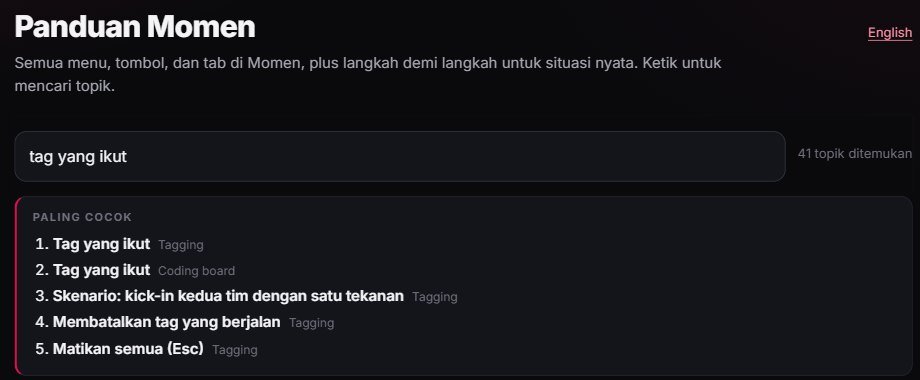
Help > Guide opens the full Momen guide in English and Indonesian: every menu and button, and step-by-step scenarios, with search. Help > Version history opens this page.
0.8.2 14-day trial, safer licences 5 October 2026
A longer trial, and a stronger licence check.
14-day trial
Coaches who sign up through Try it free can now use every Pelatih Pro feature for 14 days from their first sign-in on a laptop (it used to be 7 days). One laptop, one trial.
Safer licences
When a trial or licence ends, Momen locks, even with the internet switched off or the computer clock changed. The tags, clips and matches you made stay saved.
0.8.1 Updates work again 5 October 2026
One important fix for Momen on Windows.
Automatic updates work again
Since version 0.6.0, Momen on Windows at version 0.5 or older failed to install updates and stayed on the old version (the update could not be installed). Updates install again now: click Update now in the top bar. All tags, matches and boards stay safe.
0.8.0 Analysis 5 October 2026
A player's running distance and speed, measured from the video: mark the floor, click the player, and Momen follows them. You can check the path and correct it moment by moment.
The Run tool: distance and speed from video 1
In Draw, pick the Run tool (under Measure) and click the player's feet. Momen follows the player for up to 20 seconds and draws the path on the floor, coloured by speed: walk, jog, run, sprint. The panel shows distance, time, average speed and top speed. When the video plays, the path draws along with the distance and speed at that moment, in exported clips too.

Check and correct the path
Drag Check path to another moment: the video goes there and a white circle shows where Momen thinks the player is. If it is off, click the player's feet there, and Momen follows them again from that point. Stretches too fast to be running (for example when Momen switched to another player) are marked and left out until you correct them.
A marked floor, a still camera
Distance is measured on the floor you mark with Set floor: drag four points to the corners of a box whose size you know, then enter its size. Momen refuses to measure if the floor is not marked or the camera has moved since, and stops measuring when the camera moves. Most accurate with the camera on a tripod; the numbers are estimates from video.
In Stats and Excel 1
Stats has a Runs list: every measured run, with its distance, time and speed. Click one to see it in the video. Exported clips carry a Runs sheet in tags.xlsx. The Run tool is in the Pelatih Pro, Tim and Akademi plans, and open during the trial.

0.7.0 Presentation 5 October 2026
Take clips from many matches to the team meeting: put them in one presentation, play it full screen on a TV, or make it one video for the players. Plus video from a second camera, in time with the main video.
Presentation tab: clips from every match 1
The new Presentation tab gathers clips from all your matches in one list. Filter by team (this team's clips or its opponent's), tag, label, player, thumbs or star, and date. Tick the clips, press To presentation, then drag them into order. Add a title makes a title card to split the parts, for example Counter-attacks, then Defending. It works from Tagging too: right-click a clip, To presentation.
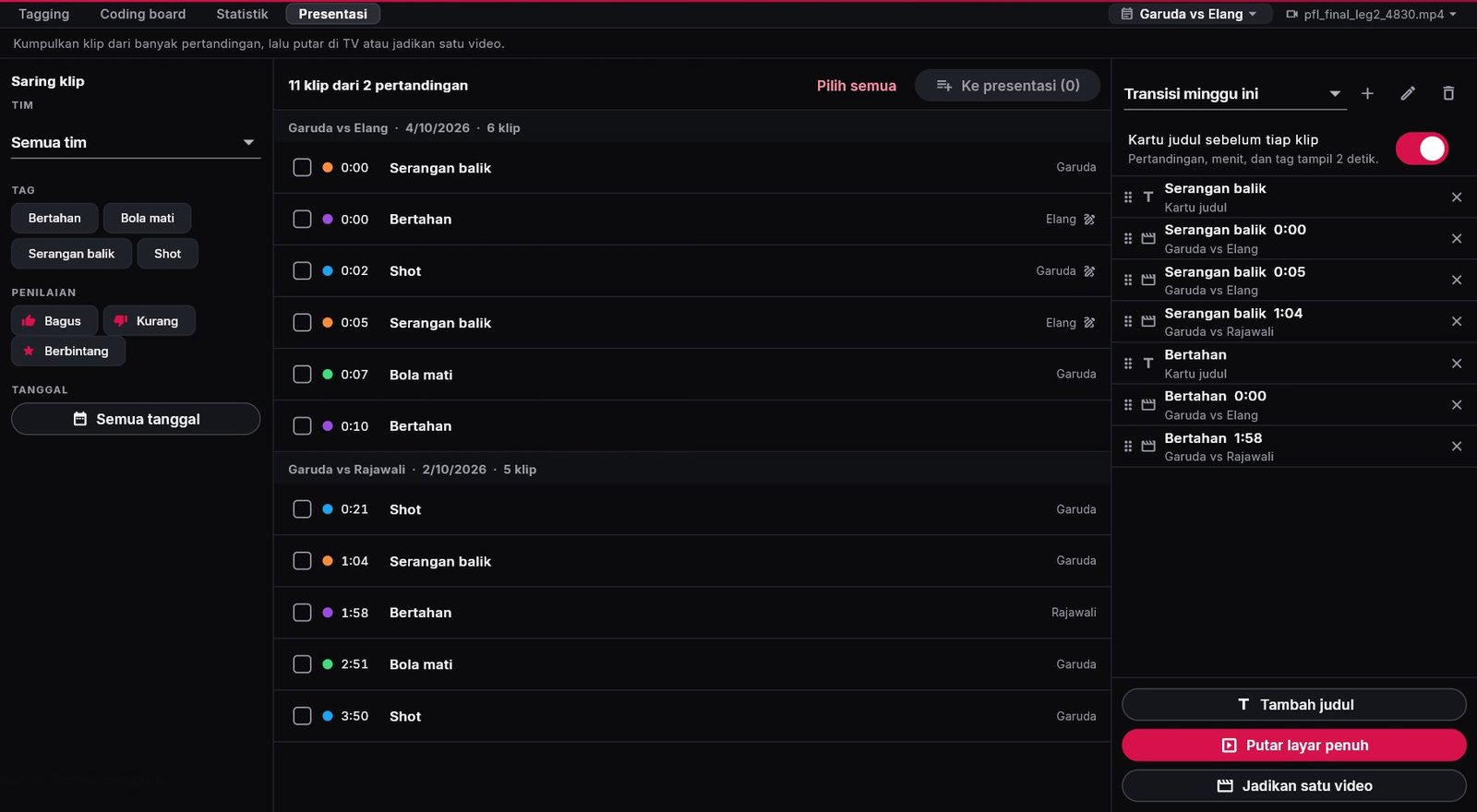
Play full screen on a TV or projector 1
Play full screen runs the presentation in order, clips from different matches, with a title card before each clip (match, minute, tag) that you can switch off. Tactical drawings pause as usual. Space to pause, the right and left arrows (or a presentation clicker) for the next and previous clip, R to replay, Esc to leave.
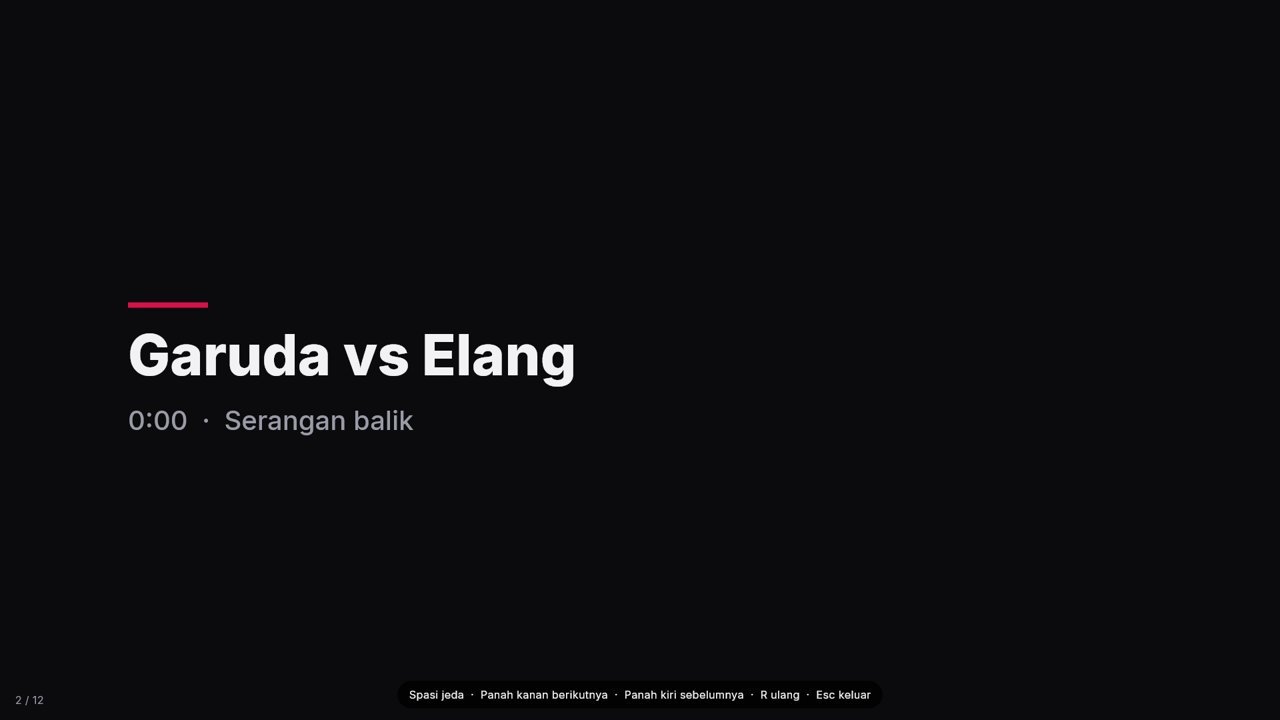
Make it one video
The whole presentation becomes one MP4 file, with its title cards and tactical drawings, to send to the players. Video from different cameras, with different sizes and frame rates, with or without sound, is matched automatically. The picture size follows the clips, or pick 720p or 1080p.
Video from a second camera 1
Click the video name at the top right, then Add another camera angle, for example a camera behind the goal. Find the kick-off in that video and press Kick-off here: its time now matches the main video. After that, switch cameras at any time and the video goes straight to the same moment. Clicking a clip, exporting clips and To presentation use the camera on screen. Tactical drawings stay on the main video.

In the Pelatih Pro plan
Presentations and the second camera are in the Pelatih Pro, Tim and Akademi plans, and open during the trial. Presentations made during the trial can still be played and made into a video.
0.6.2 Quicker to work with 5 October 2026
A string of small requests from the test coaches that make tagging and exporting faster: cancel a continuous tag, your own tag order, one-click notes, and file names that are easy to read.
Cancel a continuous tag that does not count 1
A running continuous tag can be cancelled if it turns out not to count: click the x in the tag list, or right-click the tag in the list or on the board. No clip is saved, and other tags that stopped with it run again. Ctrl+Z brings it back.
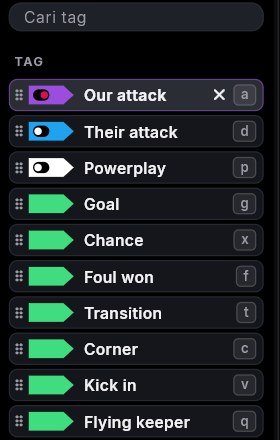
Your own order for tags and labels
Drag a tag or label by its handle in the left list to set the order. The order is saved with the board and used in Stats too.
One-click notes 1
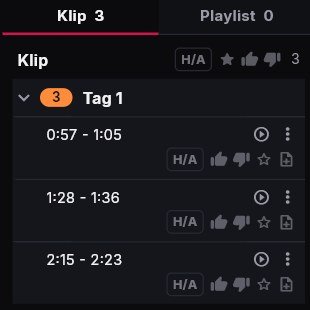
Every clip has a note button next to the star. One click and you are writing a note; Enter saves, Shift+Enter starts a new line. Labels in the clip list are no longer cut off mid-word.
File names that are easy to read 1
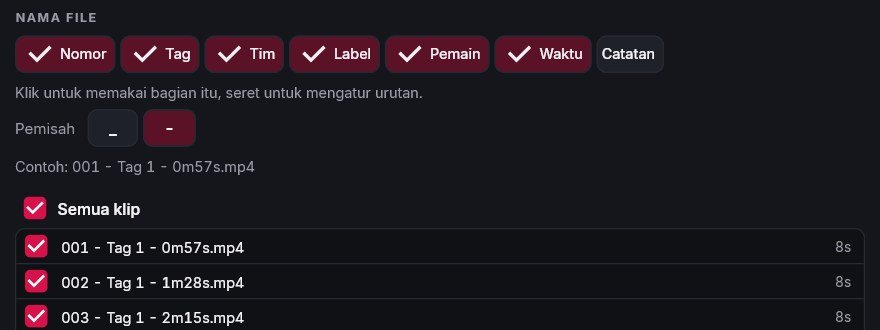
Words in tag, label and note names keep their spaces in the file name. With the dash separator, the parts are split with " - ", for example AT PRE - BLOCK SCREEN - ALWAYS TO PIVOT - 007.mp4.
Duplicate a button, and the Coding board with no match open
Duplicate is now a button of its own in the button panel, on Ctrl+D, or right-click the button on the board. The Coding board can also be edited before any match is open.
0.6.1 Drawings that stick 4 October 2026
Every drawing tool was tested one by one on match footage, then polished: old drawings can be edited, the spotlight really follows the player, and Ctrl+Z works everywhere. Plus a button to close a match and three ready-made boards.
Edit a drawing you already made 1
Every drawing has a yellow mark on the time bar. Click it to go to that drawing, double-click to edit it straight away. When the video is on a drawing, the button reads Edit drawing.

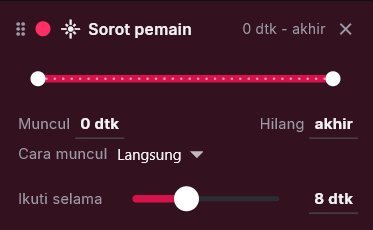
A spotlight that really follows the player 2
Momen finds the player again in every frame, from the direction of the run, their size and their kit colour, so the spotlight stays on them even when they pass other players. Set how long for each spotlight (Follow for, 1 to 20 seconds). If the broadcast cuts to another camera, the spotlight stops there.
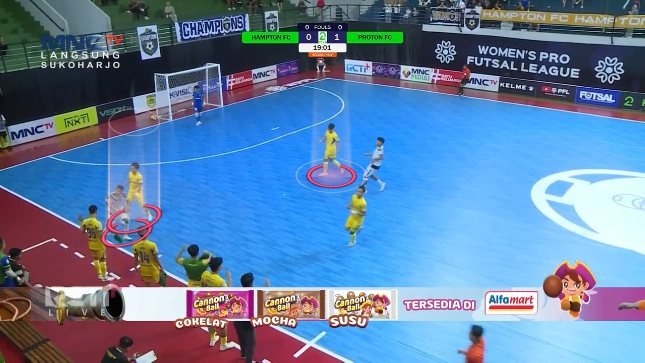
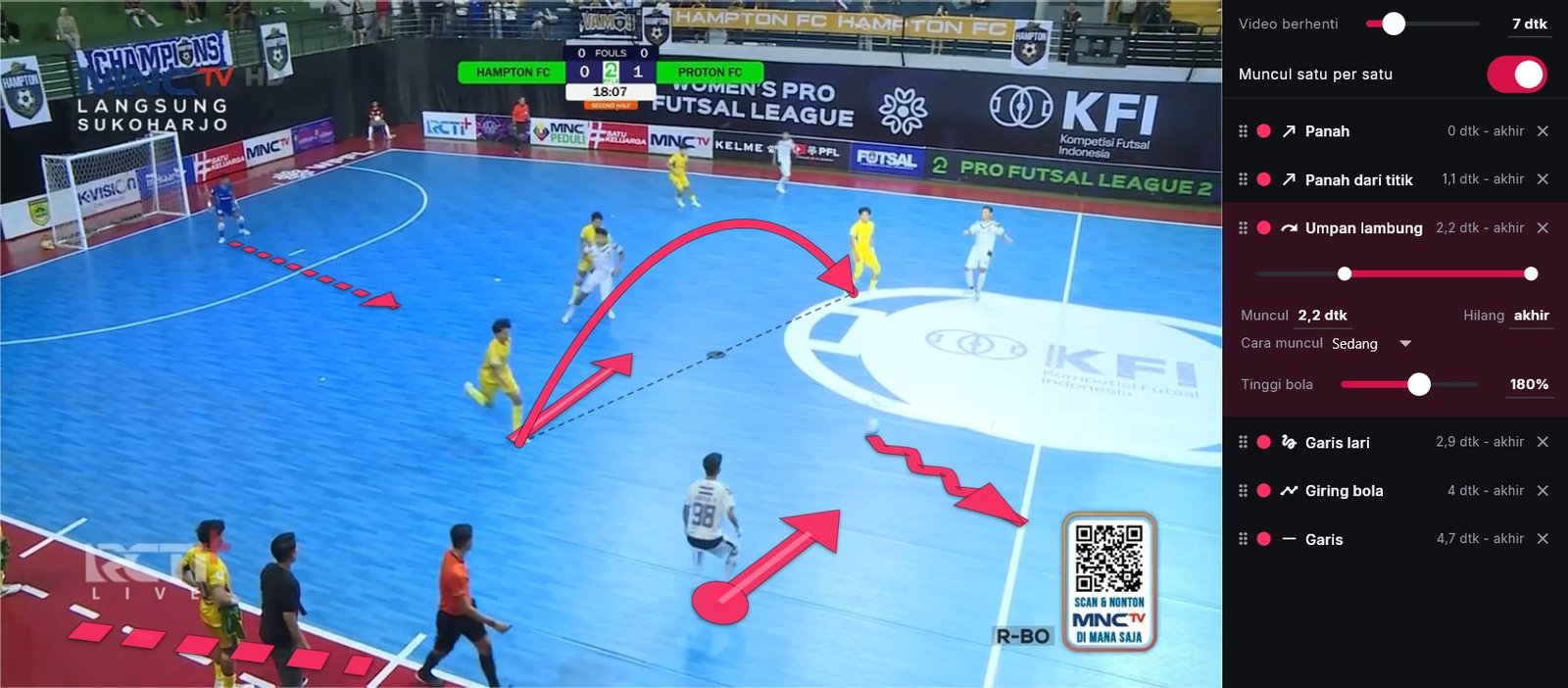
Ball height for lofted passes 1
Lofted passes now have a Ball height setting, from a low ball to a high lob (20 to 300 percent). The next pass uses the last height.
Ctrl+Z and Ctrl+Y for everything
Undo and redo now work for drawings, players, playlists, the kick-off and Coding board changes, not just clips.
Close a match 1
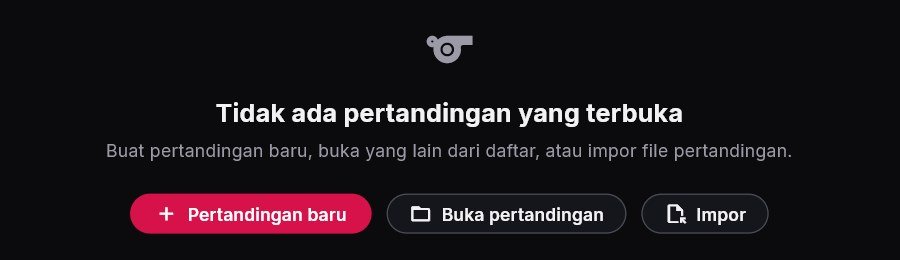
In the match list, open the three dots on the open match and choose Close match, or press Ctrl+W. All tags are saved, and the screen stays empty until you make a new match or open another one, so no tag lands in an old match by accident. A closed match can also be deleted.
Three ready-made boards 1
A new install comes with three boards: Sample board for any sport, Futsal - Full match (our attacks and theirs, goals, chances, fouls, transitions, corners, kick-ins, and the goalkeeper joining the attack, for both teams), and Futsal - Set pieces (corners, kick-ins, free kicks, penalties, with labels for team, variation, how the ball went in, and the outcome). Existing users get the two futsal boards in the Boards menu; old boards do not change.

Clearer drawing tool icons 1
Erasing a shape now uses an eraser icon, in the tool list, the right-click menu and the bottom bar. The lofted pass uses an arc with a ball, the dribble a wavy line, the run line a dashed arrow, and Zoom no longer uses the same magnifying glass as Magnifier.

Fixes
A clip that started exactly on a drawing used to fail to export; it works now. Short dribbles still show their zigzag.
0.6.0 Pro drawing 4 October 2026
Much fuller tactical drawing, inspired by professional analysis tools: drawings appear in sequence, new tools, zoom, even moving players. Plus every request from the meeting with the test coaches.
Draw mode with its own screen 1
Press Draw and the layout changes with a short animation: tools on the left, the drawing list on the right, a bigger video. Press Done and the layout goes back to how it was.
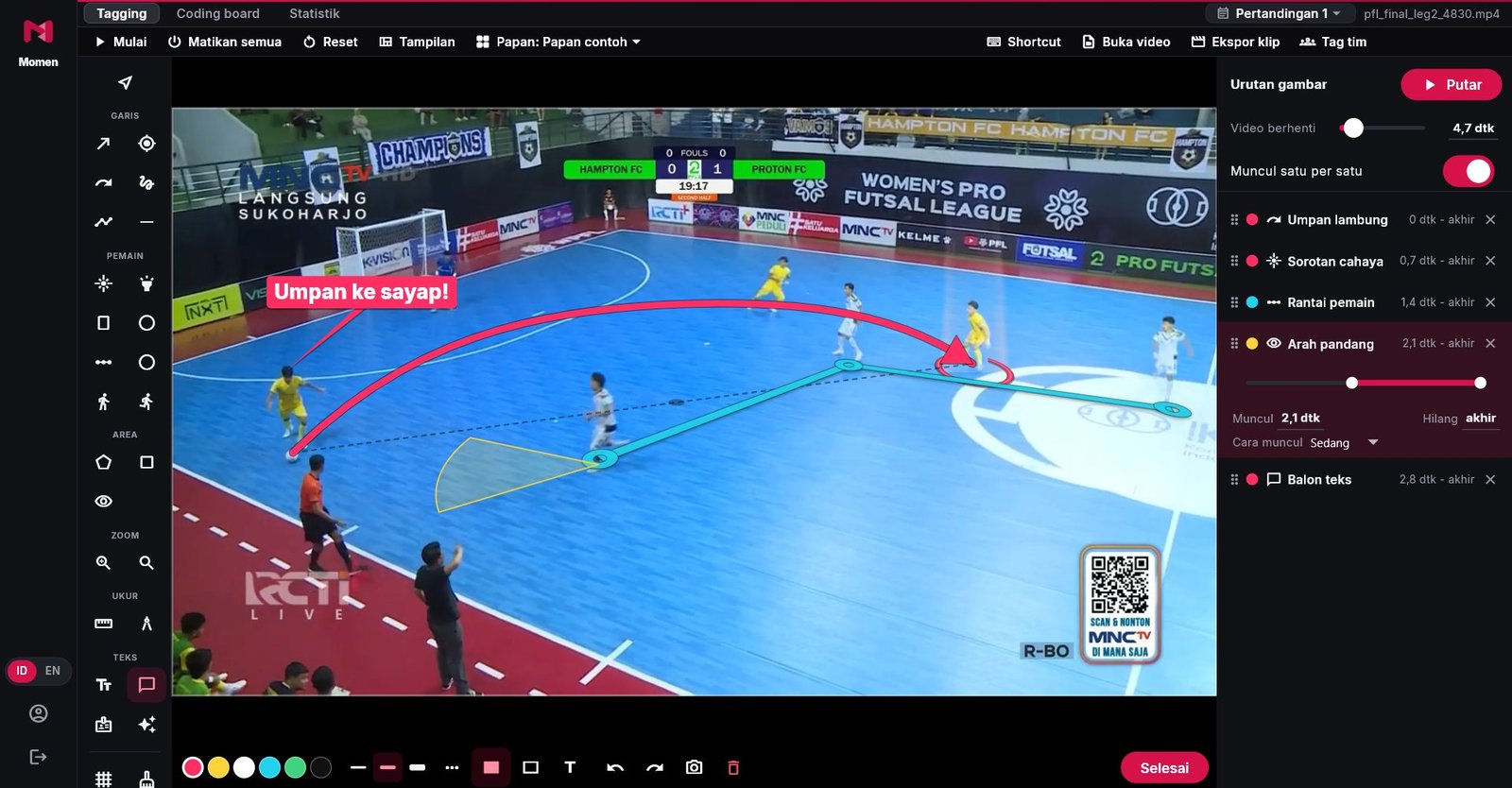
Drawings appear in sequence 1
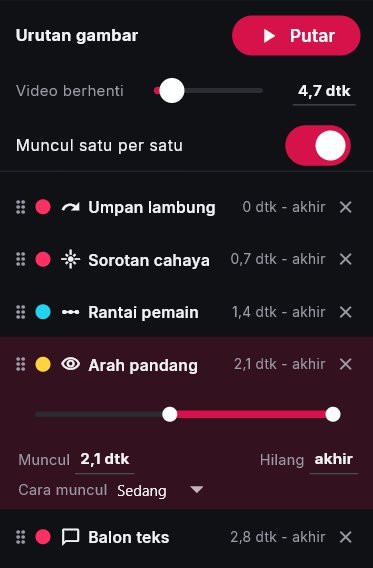
While the video is paused (up to 30 seconds), you can set when each drawing appears, when it disappears and how fast it draws. Turn on One after another to build the order automatically, then press Play to watch it. The numbers beside the sliders can be clicked and typed in. Exported clips show the same sequence, including spotlights that follow players.
New drawing tools 1
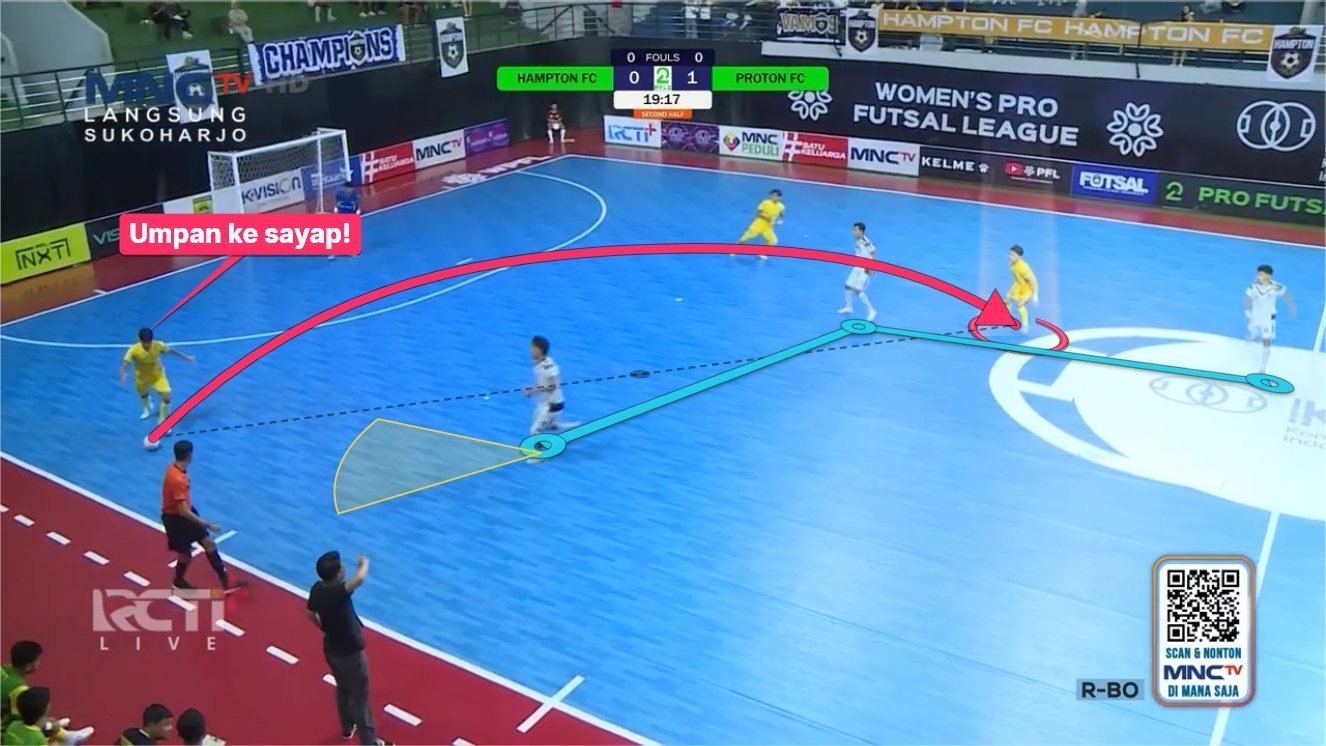
Lofted passes with a shadow on the floor, zigzag dribbles, dashed lines, run-here arrows, light beams and tubes, rings on the floor, chains between players, hatched areas, vision cones, star marks, a ruler in metres, angles, speech bubbles, and name labels from the player list.
Zoom and magnifier 1
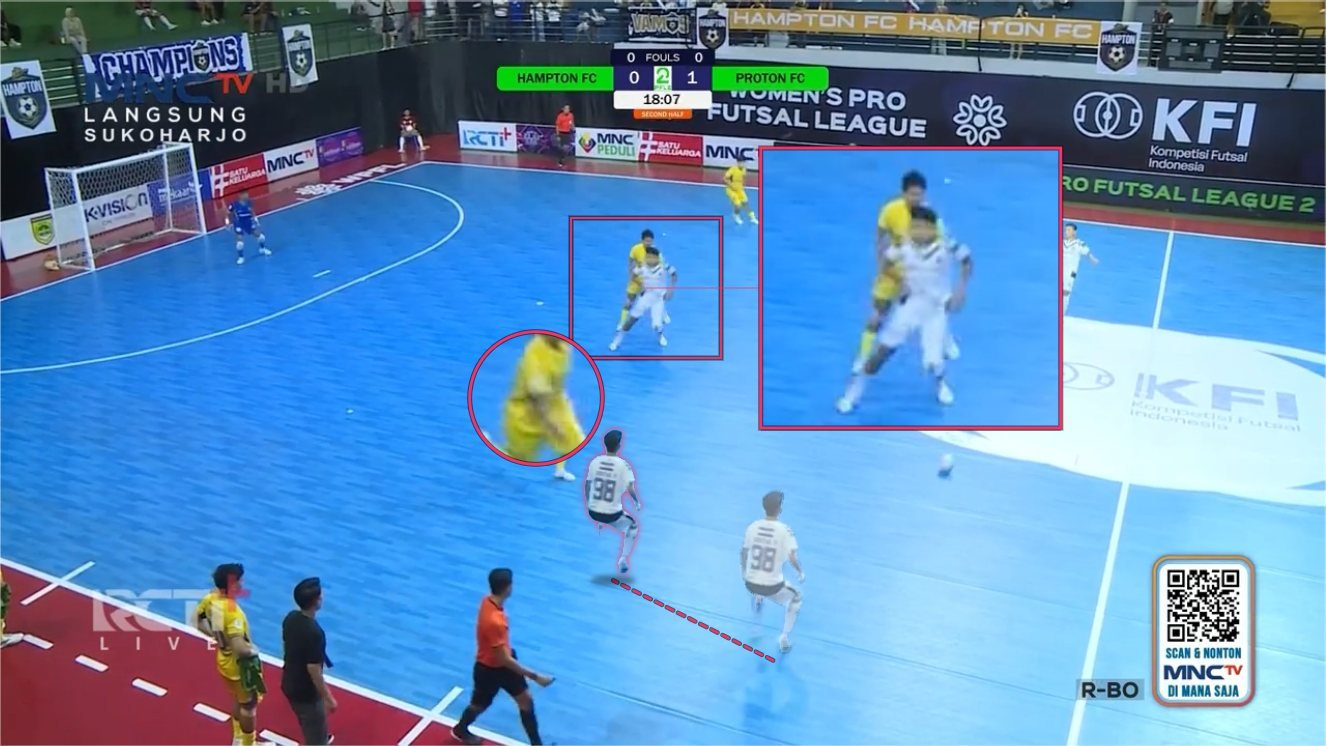
Drag a box around the part that matters and Momen shows it twice as large beside it. The magnifier enlarges one player where they stand.
Move a player 1
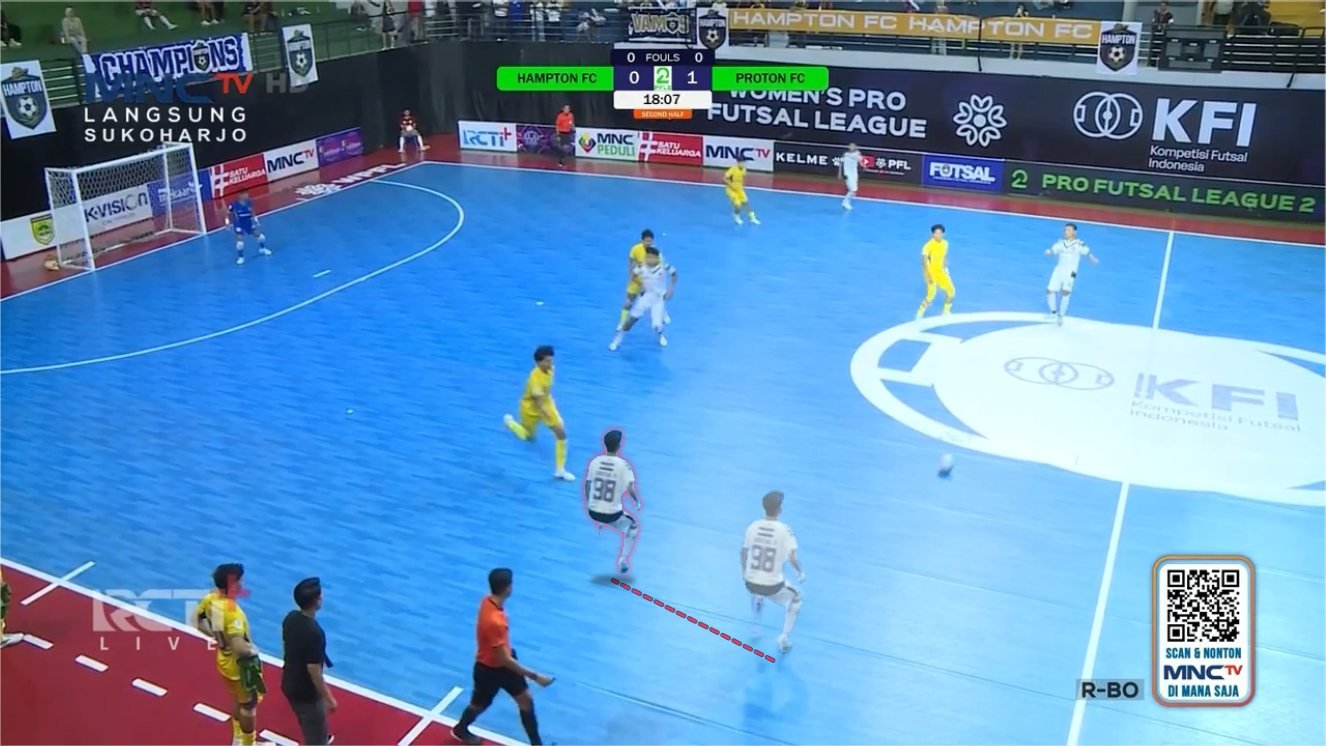
Drag a player to where they should have been. The player is cut out of the picture automatically and walks to the new spot (bigger the closer they get to the camera), and a faint shadow stays where they started. With Player route, they run along the path you draw.
Right-click a drawing 1
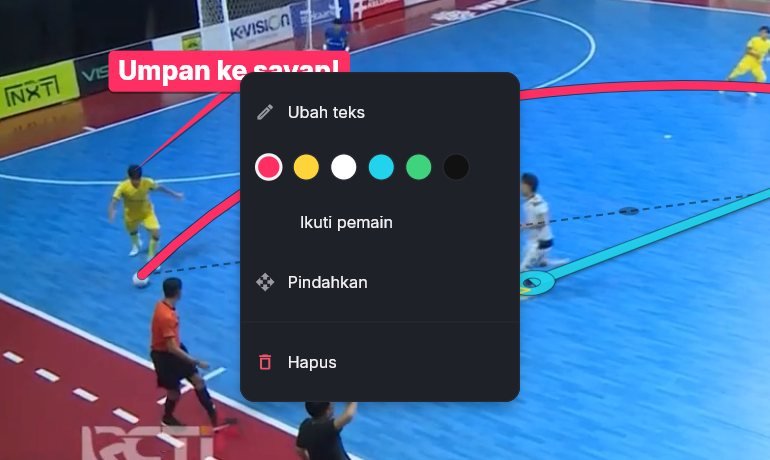
Right-click one drawing to edit its text, change its colour, follow a player, move it, or delete just that one. After a right-click you can also drag the drawing straight to another spot. The delete button in the bottom bar deletes the selected one; deleting the whole drawing asks first. The camera button saves a still picture (PNG) to send to players.
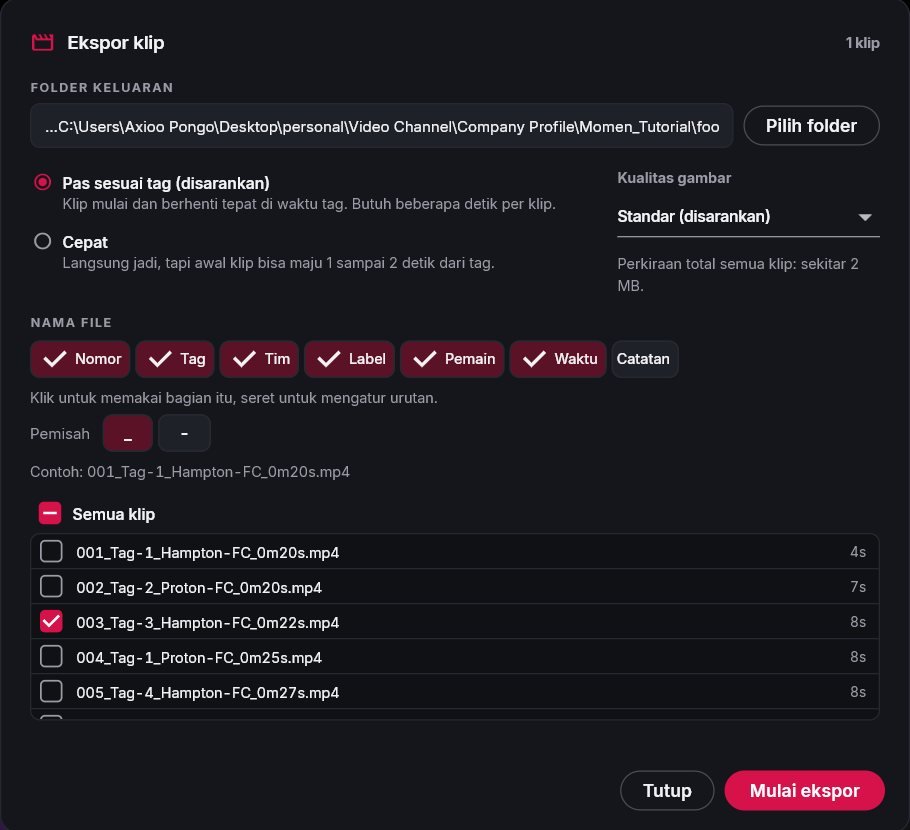
Export just one clip 1
Right-click a clip, then Export this clip. In the Export clips window every clip now has a checkbox, plus All clips to tick or clear them all.
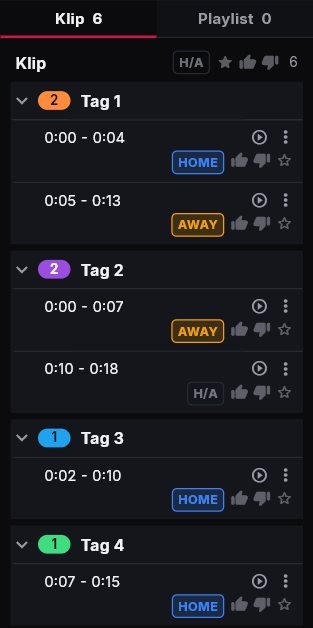
HOME or AWAY on every clip 1
Click the H/A box on a clip: once for HOME, twice for AWAY. The team name (from the match details) goes into the file name and the Excel file, and the clip list can be filtered to one team. Useful for scouting two other teams too.
Tags from phones show up straight away
Tags sent from a phone now show up on the timeline right away: that tag row scrolls into view as soon as a new tag comes in, no longer hidden further down.
Kick-off asked for from the start 2
When a video is opened and the kick-off is not marked yet, Momen reminds you above the play button, so tags line up with other teams' videos. If the kick-off is moved after tagging, Momen asks: tags made while watching this video stay on their moments, while live tags whose video was opened later move with it.


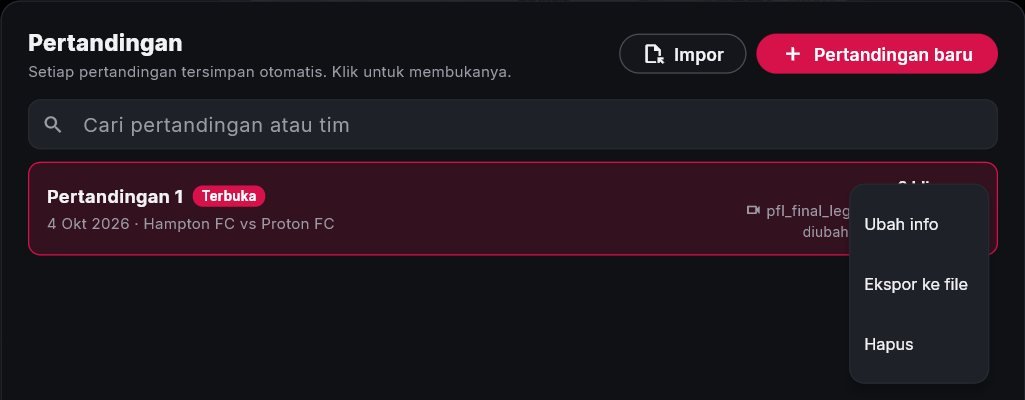
One match, one file 1
In the Matches list, three dots > Export to file saves the whole match: board, tags, drawings, players, playlists and kick-off. On another laptop, Import opens it as a new match. Then just link the video; if the video comes from another camera, mark its kick-off and every tag lines up.
Pick a team, no retyping 1
In New match, pick the team names from teams you used before. Players in the team list now have a position column too.

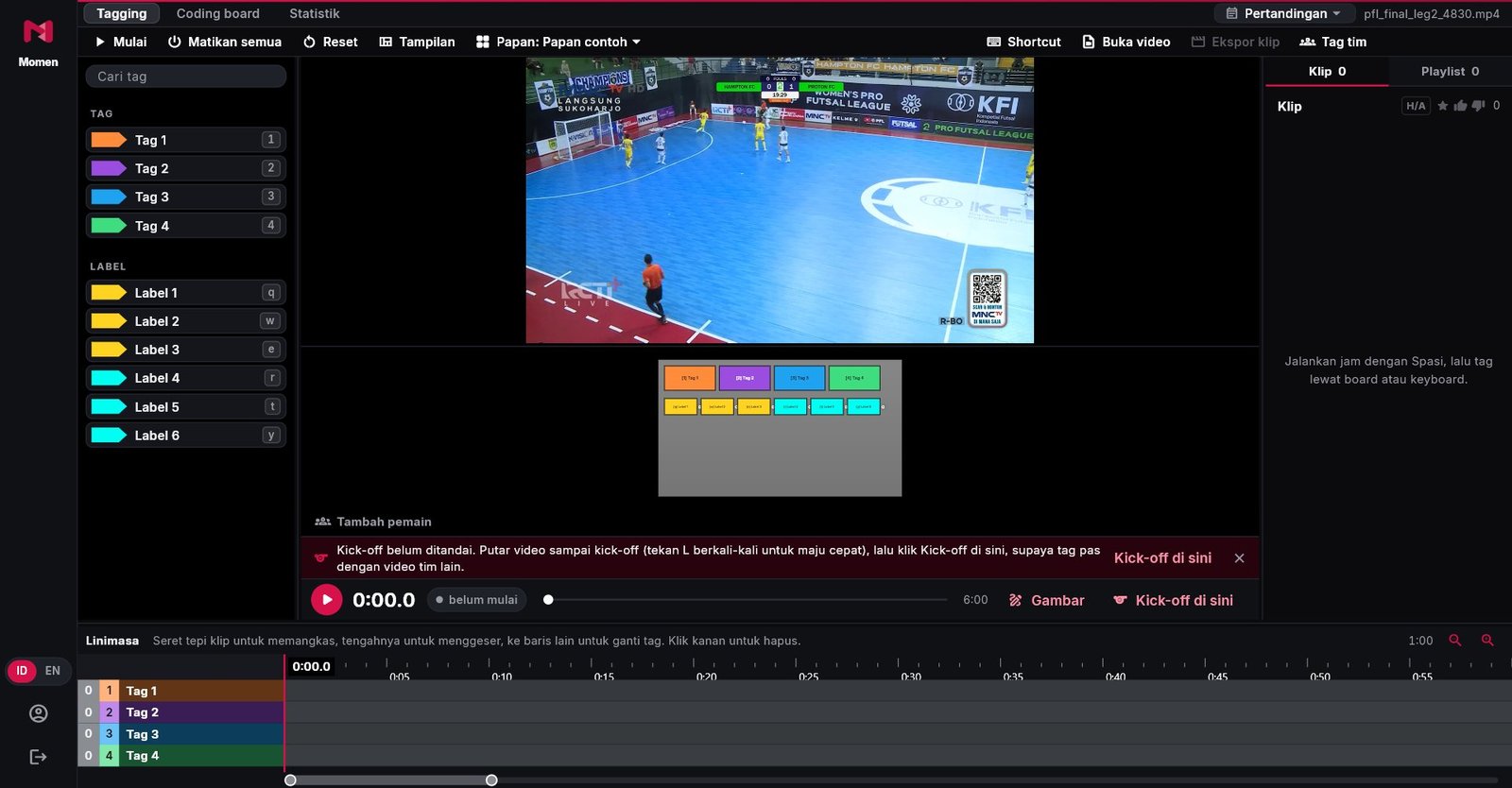
A sample board for new users 1
New users start with a simple board: Tag 1 to 4 and Label 1 to 6, ready to rename in the Coding board. For any sport.
0.5.1 Smoother recording 4 October 2026
Fixes from the test team: the live picture while recording is smooth with almost no delay, MacBooks can record from a camera again, sound is recorded straight away, and a video that moved can be linked again.
A smooth live picture, almost no delay
When recording from a camera, the live picture on screen used to stutter, freeze for up to a second, and run about a second behind the real action. Now every frame shows smoothly, only about 0.15 seconds behind, on Windows and MacBook alike. The recording keeps its full quality.
Recording from a camera on MacBook works again
On MacBook, camera recording stopped after the first few seconds. It is fixed and tested directly with a MacBook camera, with and without sound.
Sound is recorded straight away 1
In the Record from a camera window, Momen now picks the laptop microphone by itself, so the match sound is recorded with nothing to set up. If you choose No sound, that choice is remembered. On MacBook, microphone permission is asked when this window opens, so the first recording does not fail.

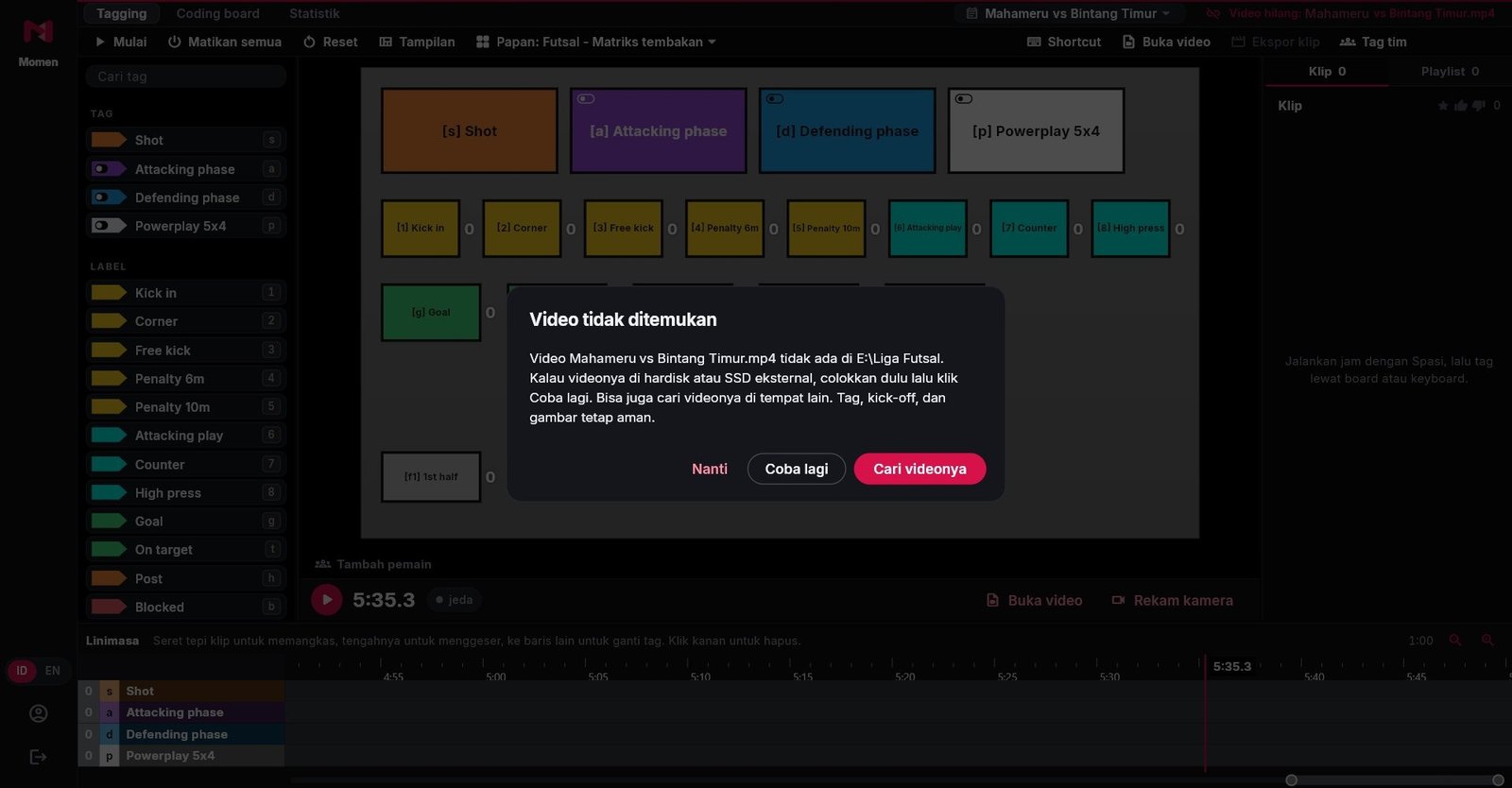
Video not found? Link it again 2
If a match video is not where it was, for example on an external SSD that is not plugged in, Momen now asks: Try again once the SSD is plugged in, Find the video if it has moved, or Later. Tags, kick-off and drawings stay safe. An SSD that shows up with another drive letter is found automatically, and other matches from the same folder can be linked at the same time. After choosing Later, the Video missing mark in the top bar can be clicked at any time.

0.5.0 Teamwork 3 October 2026
Several people tag one match at once: from phones, from other laptops, or merged afterwards. Clubs now have a Tim plan with an account for every coach. And Momen has a new look.
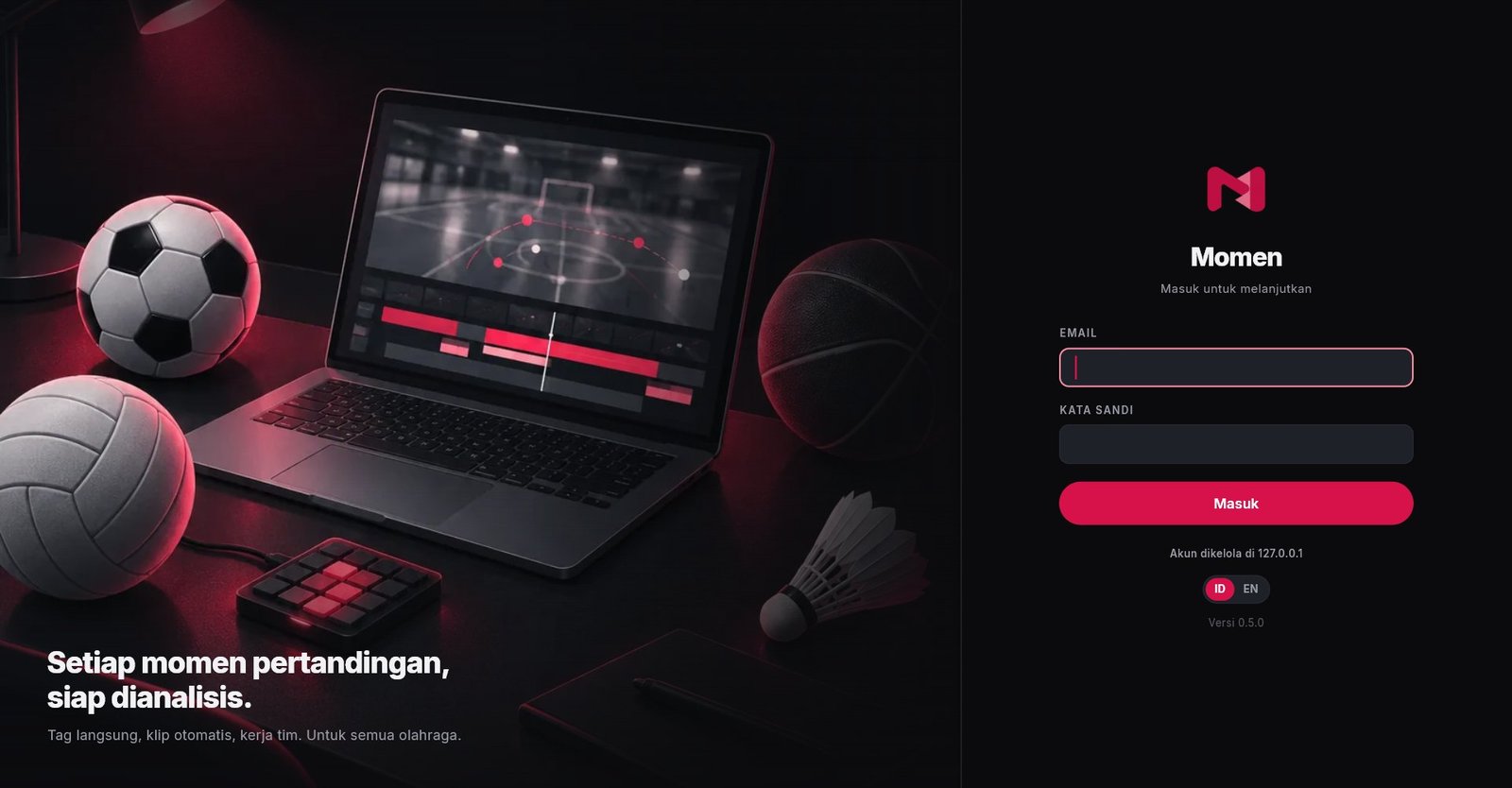
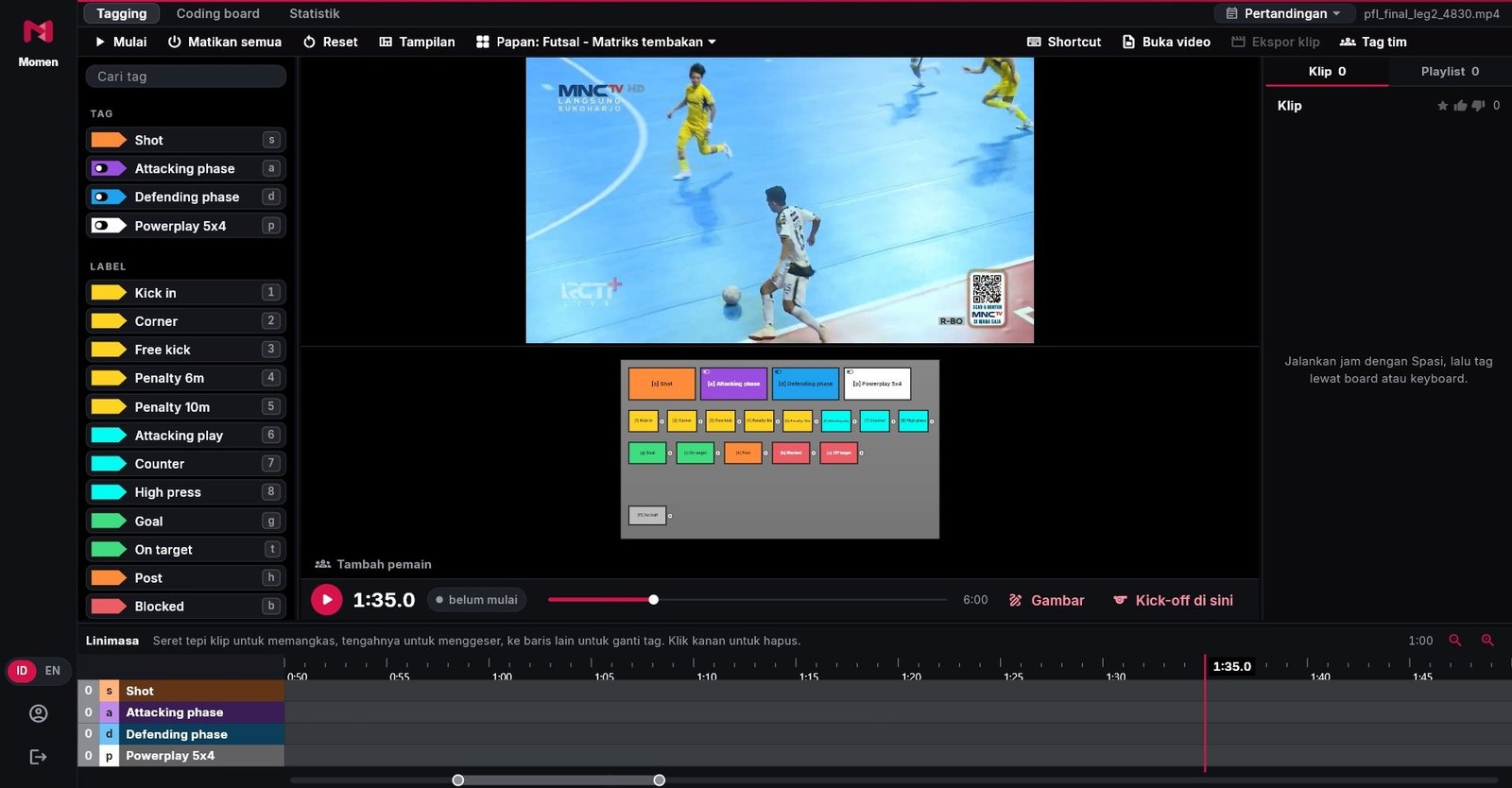
A new look 2
A new sign-in screen, a calmer top bar, keyboard keys shown next to tag and button names, and every window in the same style. The layout stays the same: the tag list, video, button board, clip list and timeline are where they were.
Tag from phones 2
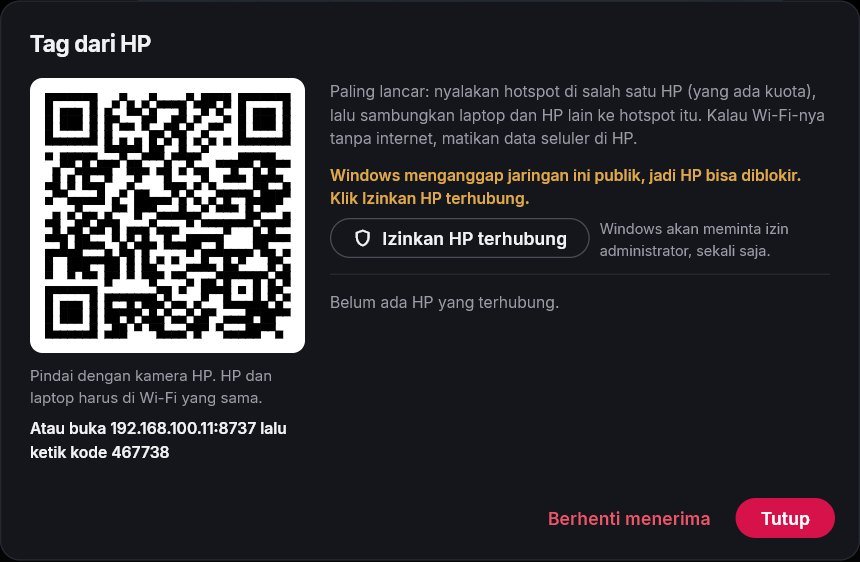
Team tags > Tag from phones: scan the QR code with the phone camera. The phone becomes a tagging pad straight away, with no app to install. Phones and laptop must be on the same Wi-Fi; it runs best on one phone's hotspot. Each phone can use its own board, and tags from a phone are recorded with the holder's name.
Other laptops tag live 1
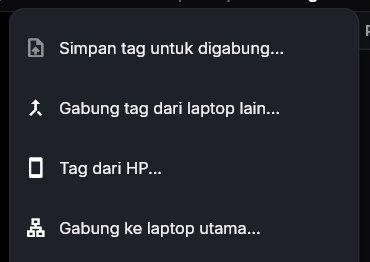
On the second laptop: Team tags > Join the main laptop. Momen looks for the main laptop on the same Wi-Fi; click it and the main laptop approves. Tags from the second laptop reach the main laptop the moment they are made. The second laptop can also watch the main laptop's picture over Wi-Fi, or play its own video to review clips without disturbing whoever is tagging.
Merge tags after the match 1
It works without Wi-Fi too. On each laptop: Team tags > Save tags for merging, send the file (WhatsApp or a flash drive), then on the main laptop Merge tags from another laptop. All tags become one set, with who tagged what, and the same tag is never counted twice.
Tim plan: an account for every coach 1
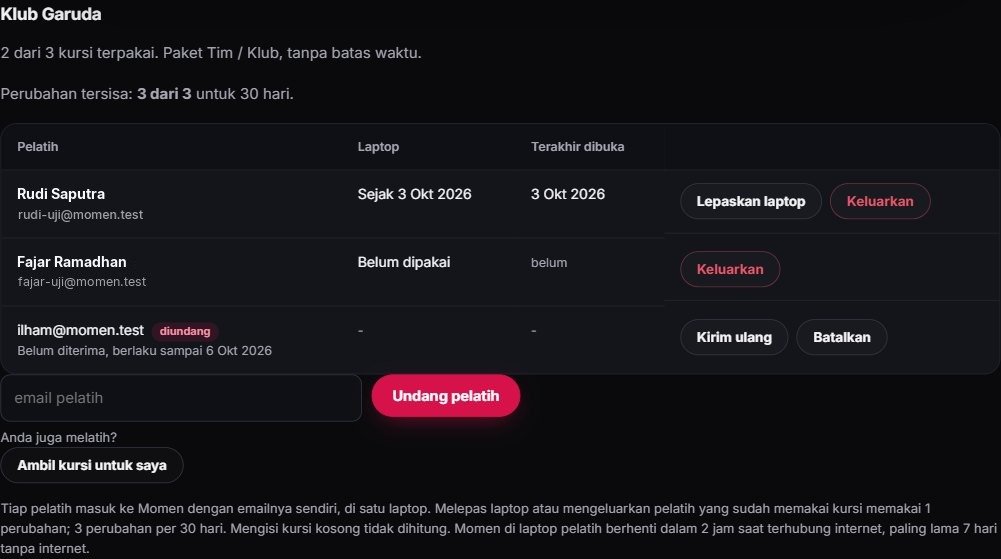
The club owner invites coaches by email at momensports.com/akun. Each coach signs in with their own email and uses one club seat on one laptop. The owner sees who uses each seat and when they last opened Momen, and can release a coach's laptop or remove the coach. Changes are limited to the number of seats per 30 days, so seats are not passed around.
Move to a new laptop yourself 2
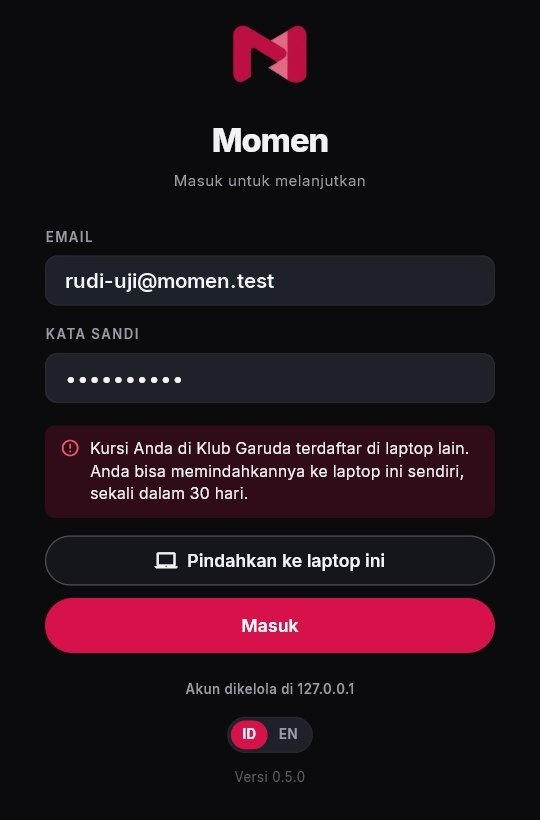
New laptop? Sign in on it, then press Move to this laptop. The old laptop stops within 2 hours when it is online, or after 7 days at most without internet. Once every 30 days, for personal licences and club seats alike.

Recordings with sound no longer drift
Camera recordings with sound could drift by about 19 seconds by the end of a match, so tags made while recording missed the video. Now the video stays exact to the end.
Older MacBooks work too
Momen now runs on macOS 12 (MacBooks from 2016 on). Clicking a player for a spotlight needs macOS 13.3 or newer; everything else works as normal.
A safer licence that still works offline
Momen can be used without internet for up to 7 days. Before the time runs out, a small note at the top of the app asks you to connect briefly. If access ends while you are recording, Momen waits until the recording is finished.
0.4.0 Tactical drawing and player spotlight 2 October 2026
Pause the video, draw arrows and runs right on the court floor, then click a player to spotlight them. When the video plays, it stops briefly on the drawing, then the spotlight moves with the player.
Drawing on the video 1
Pause the video, then press Draw (Ctrl+D). Pick an arrow, a run (dashed line), a line, an area, a circle, a spotlight or text, in six colours, with an eraser and undo. The drawing tools take the place of the control bar, so the whole screen stays free for the video. Press Done when you finish.
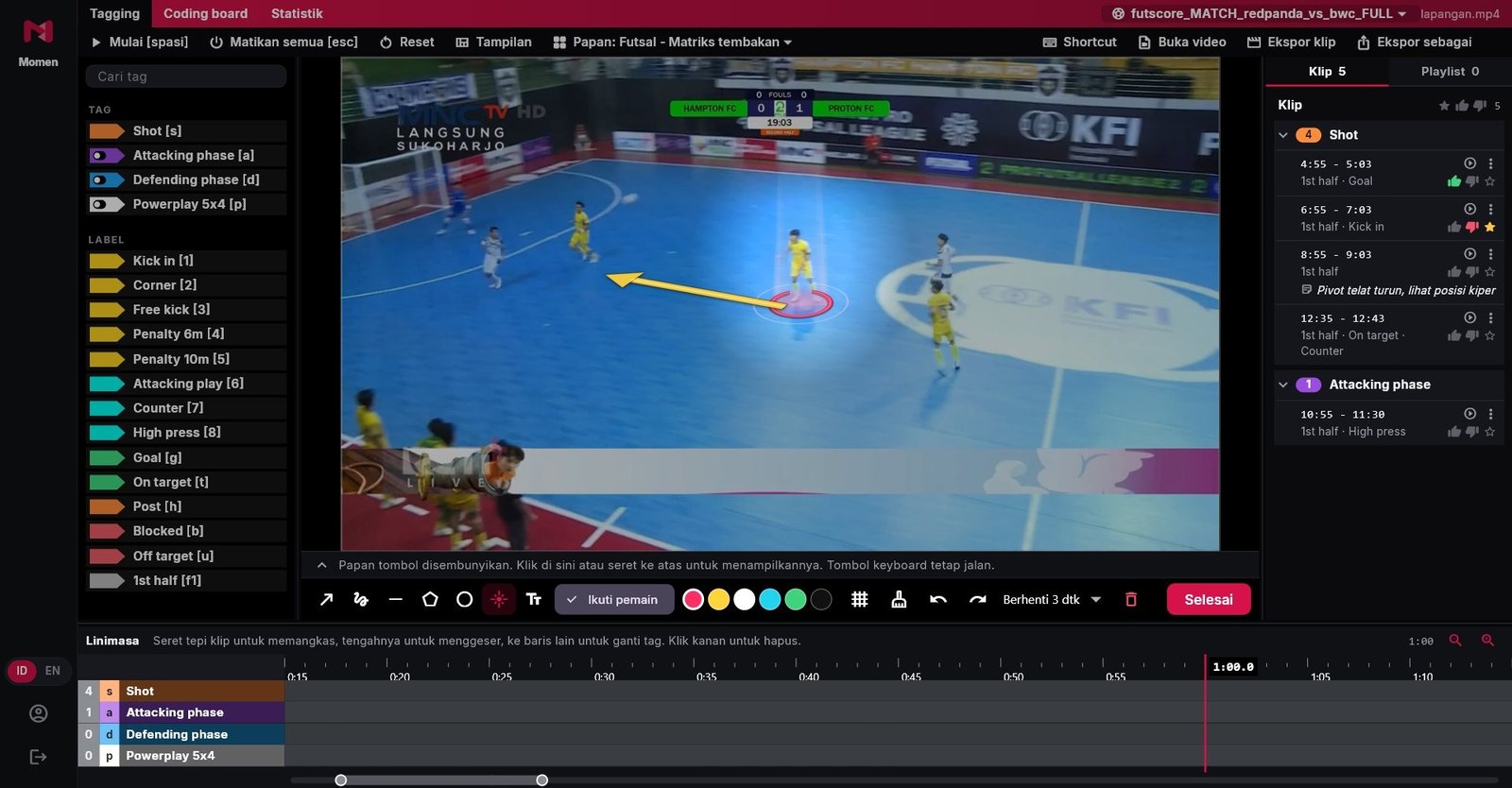
Stuck to the court floor 1
Set floor: drag the 4 yellow points to the corners of half the court. Arrows, runs, circles and spotlights then lie on the floor like paint: smaller and flatter the further they are from the camera. The setting is remembered for the next drawing.
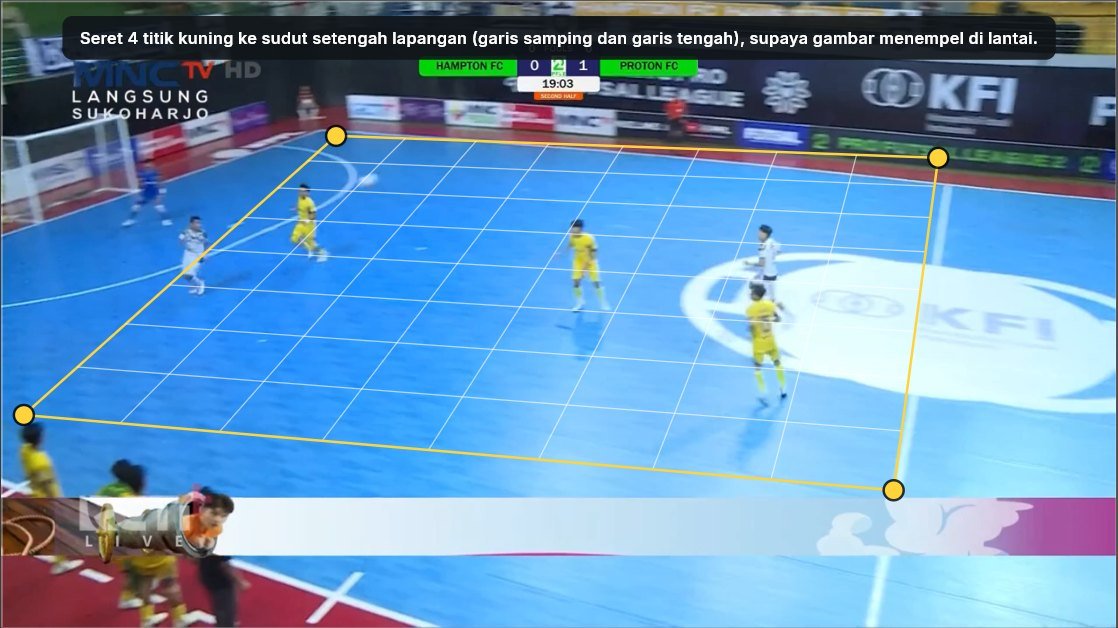
Player spotlight in one click 1
Pick the spotlight tool, then click the player. Momen recognises people in the picture, so the spotlight forms right at their feet, sized to their body. The area around the player darkens slightly, with light from above, a ripple on the floor and a ring around the feet: the part behind the feet is hidden, as if it were really on the floor.

The video stops on the drawing, then the spotlight follows the player 2
When the video plays, it stops briefly on the drawing (3 seconds, adjustable), then carries on. The spotlight moves with the player for up to 8 seconds, staying steady if the player only shifts a little. If Momen is unsure, for example when two players in the same shirt cross, the spotlight stops by itself rather than jump to another player.
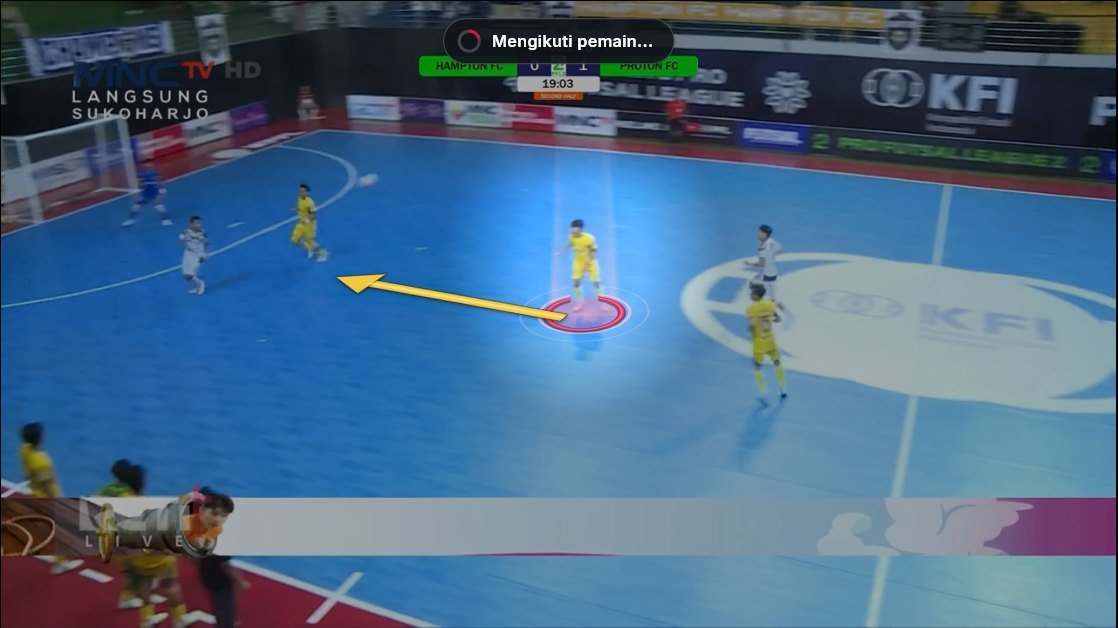
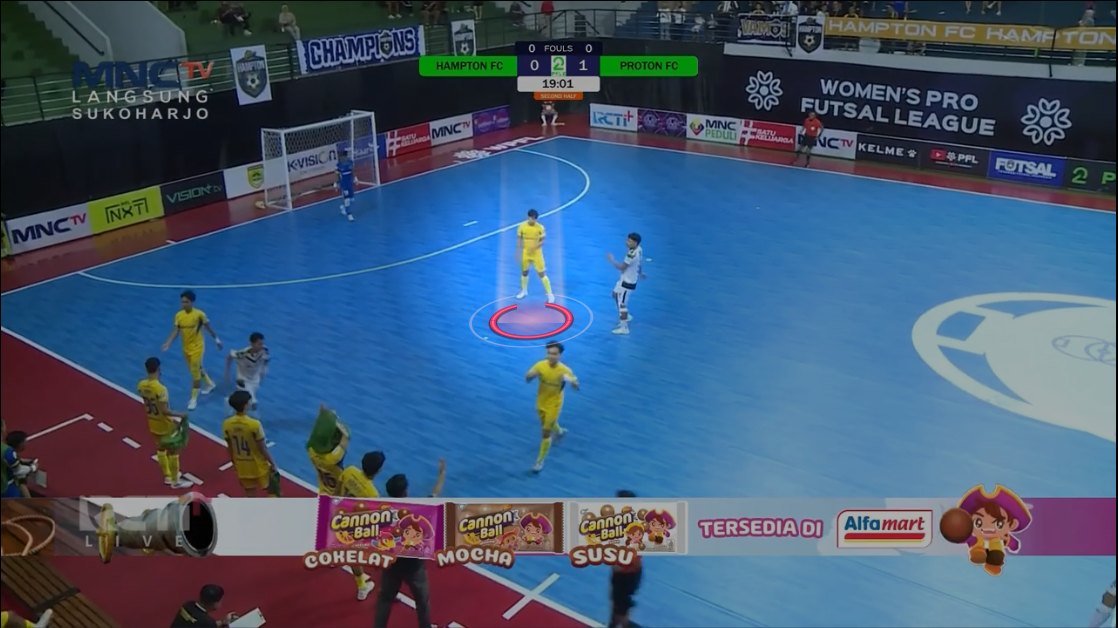
Drawings go into clips
Exported clips and joined playlists carry the drawings: the video stops on the drawing for its set time, then carries on. Spotlights that move afterwards follow in a later version.
0.3.0 Record straight from a camera 2 October 2026
Momen now records the match from a camera while you tag. First-half clips can be watched and exported at half-time, and the recording is safe even if the laptop dies. Plus an account panel in the app and clip export in clearer words.
Record straight from a camera 1
The Record camera button sits under the button board. Pick a camera: a webcam, a GoPro in webcam mode, or an HDMI capture card. Momen picks the best picture by itself (at least 25 fps so fast movement stays sharp), sound can be recorded too, and the free disk space shows as hours of recording. Your last choices are remembered for the next match.
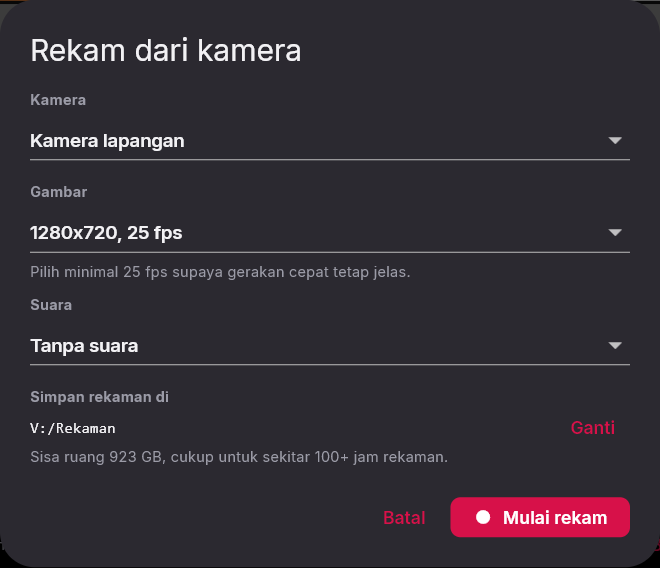
Tag while recording 1
The camera picture shows live on screen, with a red REC mark and the recording time. Tag as usual, with the keyboard or by clicking. Press Kick-off here when the match starts. Every tag lines up with the recording to the frame.

Review at half-time 1
Click a clip, or press Review: the video plays back what has been recorded while the recording carries on. Back to live shows the camera again. Clips and playlists can also be exported mid-match, so the first-half clips are ready in the dressing room.

Stop recording, get one video 1
Stop recording: within a few seconds the recording becomes one video file in the Videos\Momen folder (on Mac: Movies/Momen), named with the date and the match. After that the match works as usual: play, edit tags, export clips.

Recordings are safe even if the laptop dies
Momen saves the recording bit by bit. If Momen closes, the laptop dies or the power goes out, what was already recorded is still there. When Momen opens again, the recording is saved automatically before the match opens.
Clip export in clear words 1
The cut options are now Exactly on the tag (recommended) or Fast, each with a short explanation. The CRF number is replaced by Picture quality: Standard, High, or Space saver. Momen also works out an estimated size of all clips before it starts, and warns you if there is not enough disk space.
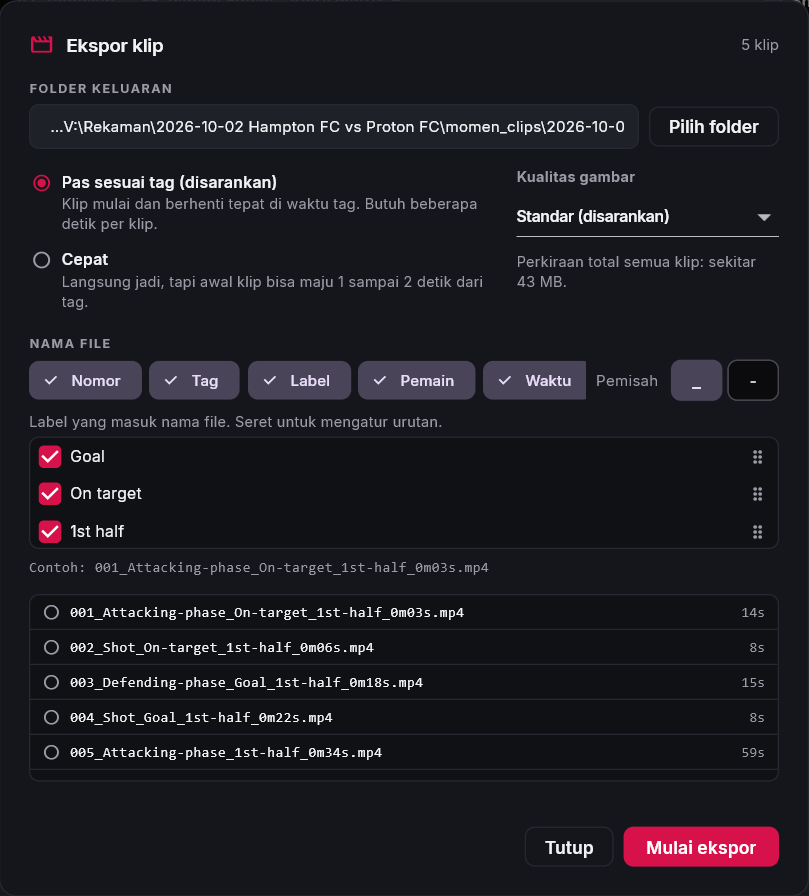
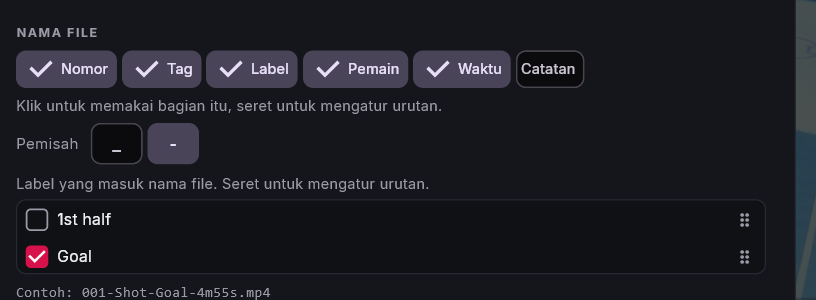
File names: the number at the end, notes can go in 1
If Number is switched off but two clips have the same name, the number now goes at the end of the name, not at the front. A clip's Note can go into the file name (off unless you pick it). Drag the parts to set the order.
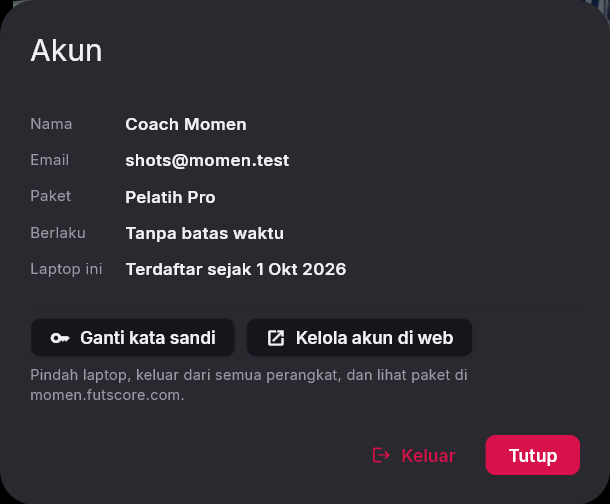
An account panel in the app 1
The Account button at the bottom left: email, plan, expiry date, and since when this laptop has been registered. Change your password right here, or click Manage account on the web to open the account page on momensports.com, already signed in. There you can move to another laptop yourself, once every 30 days.
0.2.0 Matches, players and playlists 1 October 2026
Momen now keeps every match, knows the players of both teams, and can put chosen clips together into one video for the team meeting. All of it from the requests at the 29 September meeting.
Every match in one list 1
Click the match name in the red bar (or Ctrl+P): every match is there, newest first, with its clip count and video. Search by team name, click to open. No more exporting and then pressing Reset to start a new match.
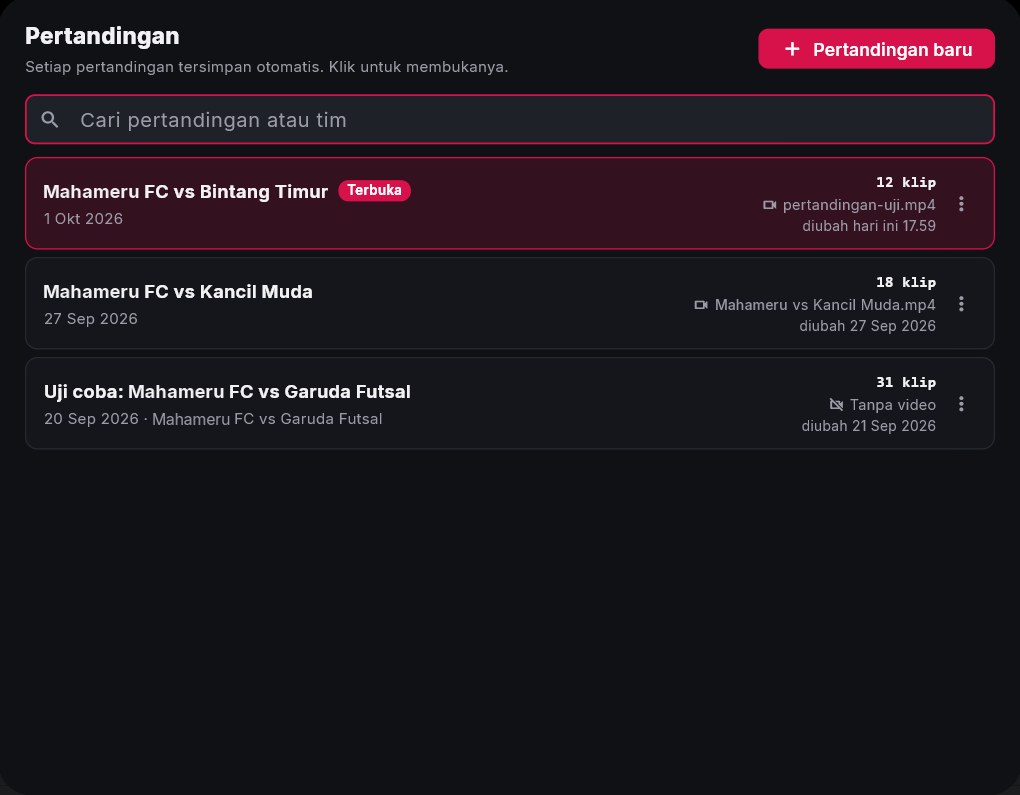
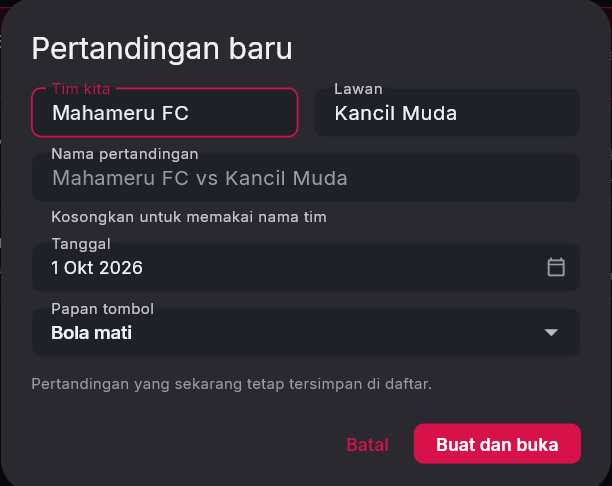
A new match in seconds 1
New match (Ctrl+N): enter our team and the opponent, the name fills itself in, then pick the button board. The match that was open stays saved. A deleted match can still be brought back while the list is open.
Old matches come along
The match that was in Momen before this update automatically becomes the first match in the list, with its tags, board and video. The old file is kept as a backup.
Players of both teams, typed once 2
The Players button under the button board: type the number and name, or Paste a list straight from a WhatsApp message. The number can come before or after the name. Team lists are saved, so the next match against the same team already has its players.
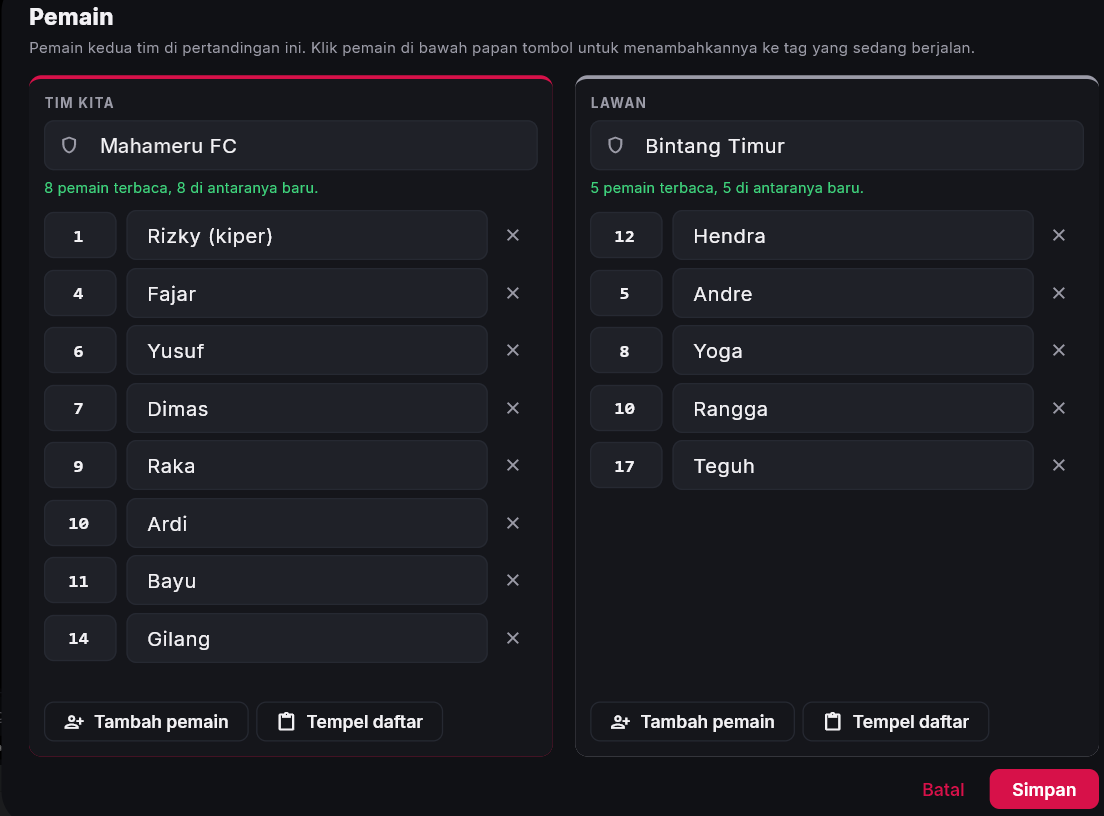
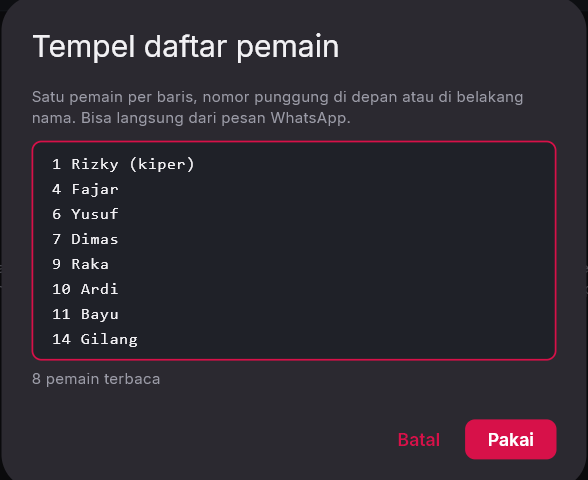
Click a player, into the tag 1
All the players show under the button board: our team in red, the opponent in grey. Press a tag, then click the player, and that player sticks to the clip. A player who already has tags has their number locked so the tags are not lost; the name can still be corrected.

Player names in file names and Excel 1
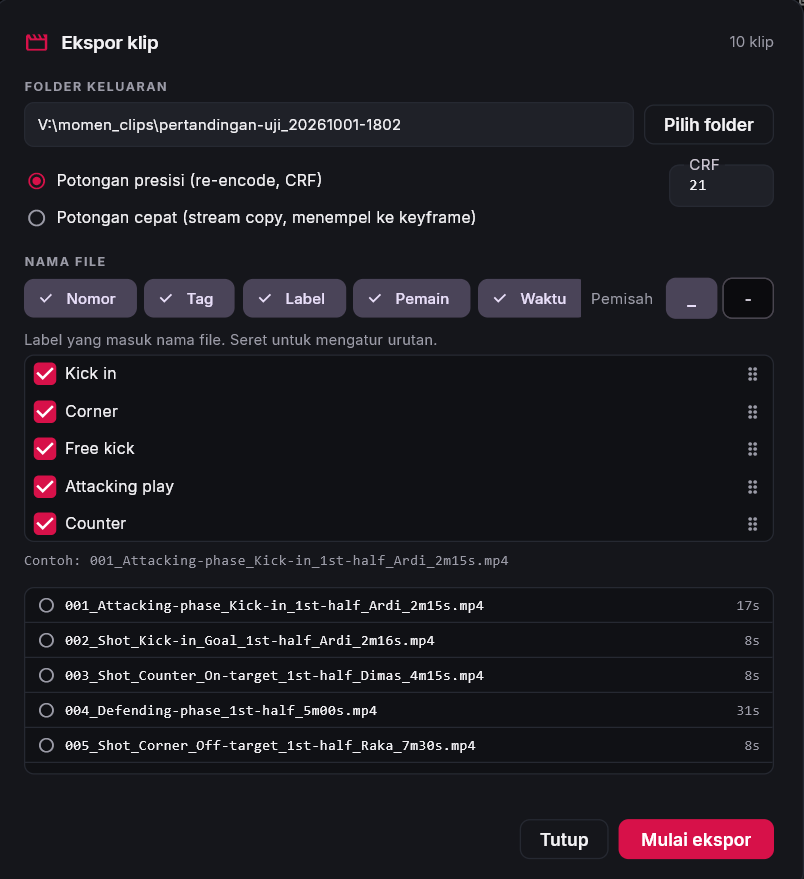
Export clips has a Player part, after Label, in the order that was asked for: 002_Shot_Kick-in_Goal_1st-half_Ardi_2m16s.mp4. tags.xlsx has a Player column.
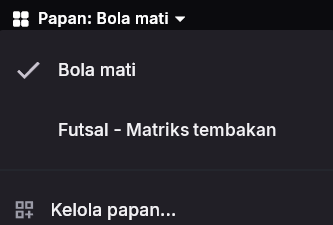
Several boards, switch mid-match 1
The Boards menu next to View: switch to another board at any time, for example a set-piece board. Tags from the previous board stay in the clip list and timeline. New board, duplicate and delete are in the Coding board tab.
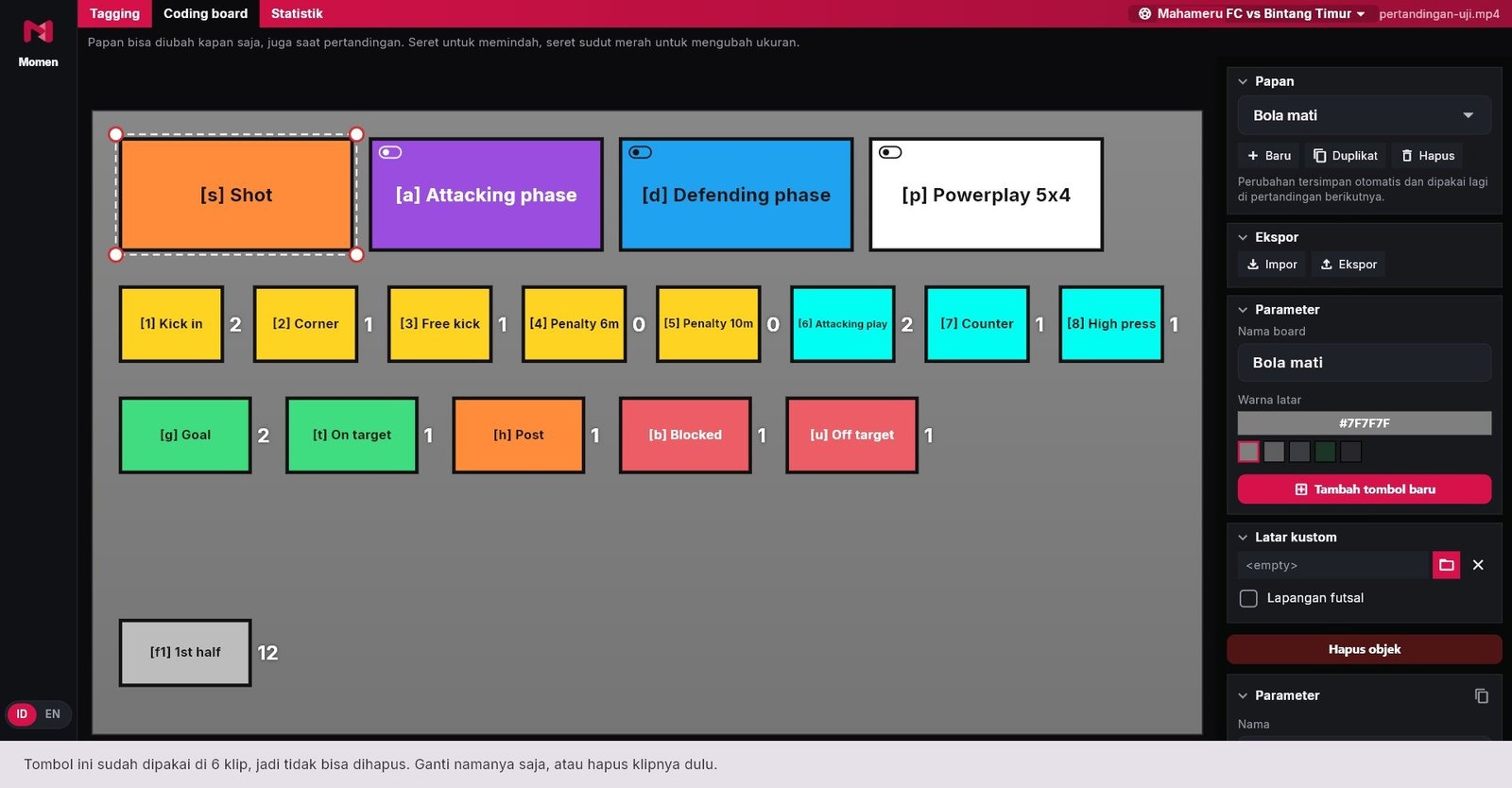
Edit the Coding board during a match 1
No more Reset to change the board. Add buttons, rename them, change times or colours while the match runs; tags that are running keep running. A button already used in clips cannot be deleted, and Momen tells you how many clips use it. Changes are saved to that board for the next match.
Label groups: one result per clip 1
Labels can get a Group, for example Result for Goal, On target and Off target. A clip has only one label from the same group, so pressing Off target after On target corrects it at once. Labels can also be limited For tags, for example results only for Shot.
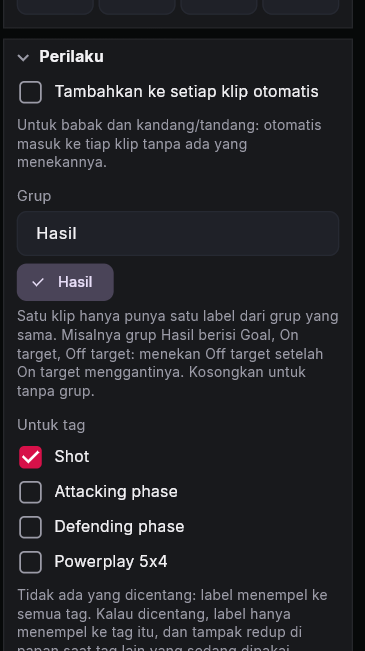
Labels that do not apply are dimmed 1
While another tag is in use, labels meant only for Shot are dimmed on the board, so your eye finds the buttons that apply. Those labels also do not stick to other tags.
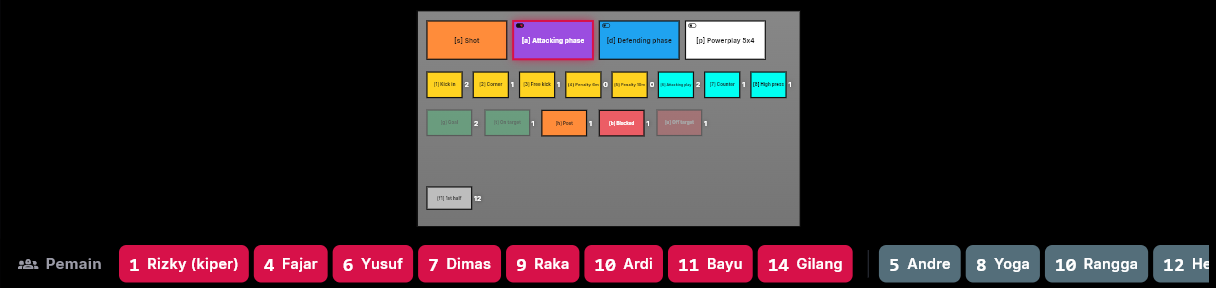
Playlists for the team meeting 1
Select clips (Ctrl or Shift + click), then press To playlist. In the Playlists tab, drag to set the order, and click a clip to play it.
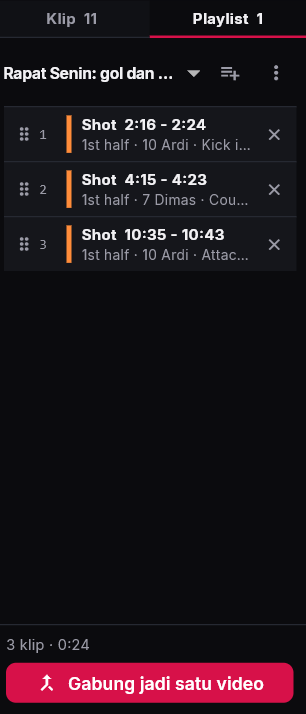
Join into one video 1
One button: every clip in the playlist is joined into one video file, with the tag, label, player and minute in the bottom left corner of each clip. The result goes in the momen_clips folder, next to the match video.
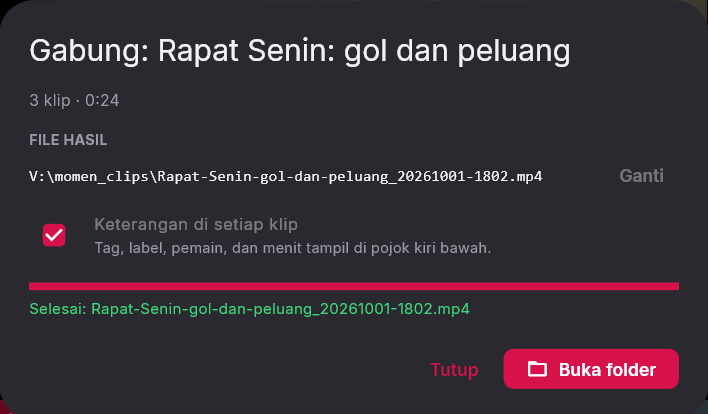
Stats for any board 1
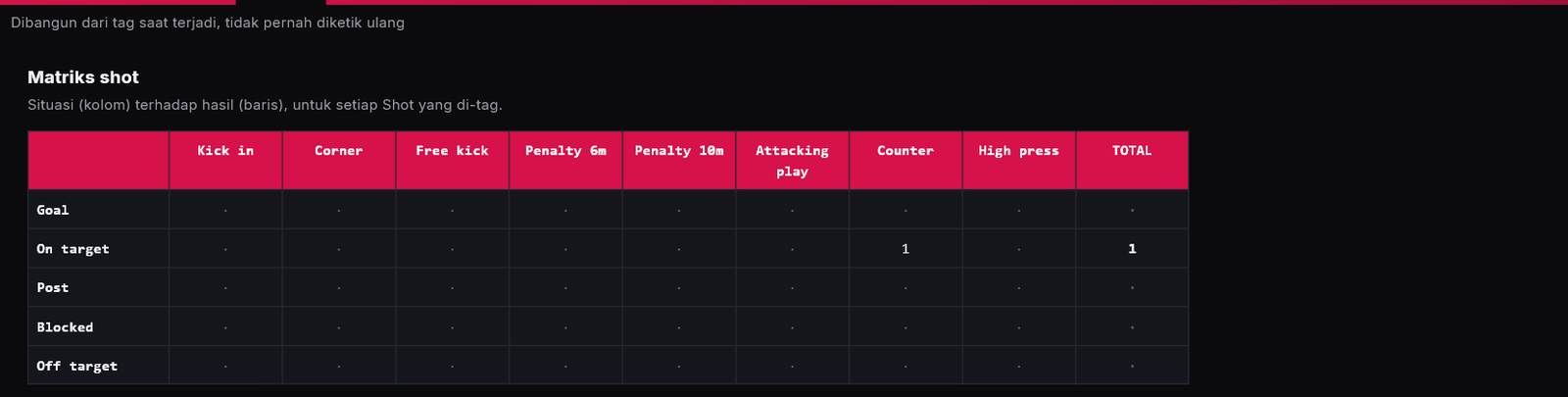
The Stats tab now works with any board: clips per tag, total time (how long attacking or defending phases lasted), per half, labels per tag, and per player. The shot matrix is still there, and its rows and columns can be picked from label groups.

Click a number, see the clips 1
Every number in Stats can be clicked: the clip list then shows just those clips. Click the cross in the top bar of the list to go back to all clips.
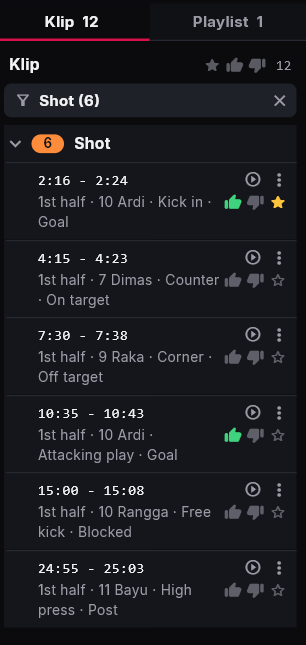
Excel with a Summary sheet
tags.xlsx now has a second sheet, Summary: count and time per tag, labels per tag, and per player, for the exported clips.
A toolbar that fits a laptop screen
On narrower screens, buttons that are used less show only an icon (the name appears when you hover over it), so nothing gets cut off.
0.1.6 Your own account and licence 1 October 2026
Momen is now used with individual accounts, not one shared password. Every account has a licence for one laptop.
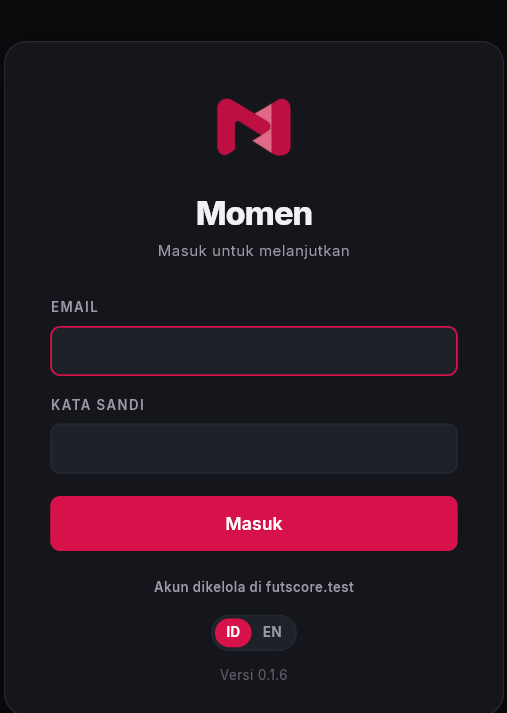
Sign in with email 1
Sign in with the email and password of your Momen account. Accounts for the test team have been made and sent over WhatsApp. The first sign-in needs internet; after that Momen keeps working without internet for up to 7 days.
One licence for one laptop 1
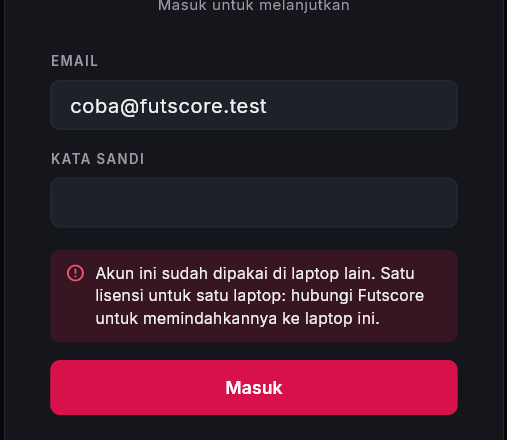
The first laptop used to sign in is registered to that account straight away. If the same account is tried on another laptop, Momen refuses with a clear message. New laptop? Contact the Momen team and the licence is moved.
Trial days left, in view 1
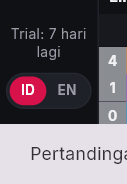
A trial account lasts 14 days from the first sign-in. The days left show in small type at the bottom left, above the language choice. If the trial or licence ends while the app is open, Momen locks and explains why. Tags and clips already made stay saved.
0.1.5 The clip list becomes a work tool 1 October 2026
Feedback from the 29 September meeting with the test coaches: pick several clips at once, rate them and add notes, fix labels, then export with tidy file names and a clip list in Excel.
Continuous tags can start a few seconds early 1
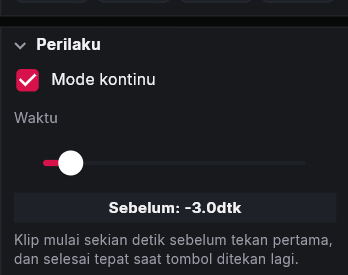
Continuous tags (press once to start, again to finish) now have a Before setting, so the start of an attack is not cut off. The clip ends exactly when the button is pressed again, also when it is closed with Esc.
Set it in the Coding board tab: click the tag button, then move the Time slider in the Behaviour section.
Pick several clips, then export or delete them at once 1
- Ctrl + click adds or removes one clip (on Mac: Cmd).
- Shift + click picks every clip from the last clicked clip to this one.
A 2 selected bar appears with export, delete and cancel buttons. Export clips and the Delete key also work only on the selected clips. Deleted by mistake? One Ctrl+Z brings them all back.

Thumbs, stars and notes on every clip 2
- Thumbs up for the good ones, thumbs down for the weak ones, a star for presentation clips. Click again to undo.
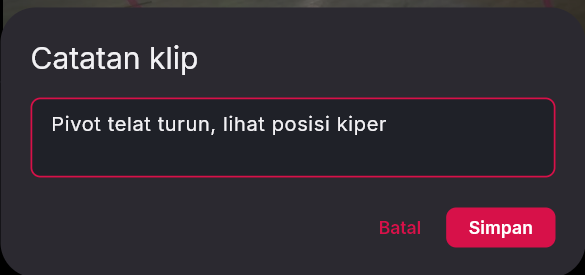
- Notes through the clip menu (⋮ or right-click), then Note....
- Three icons at the top right of the clip list filter it: starred only, good only, or weak only.

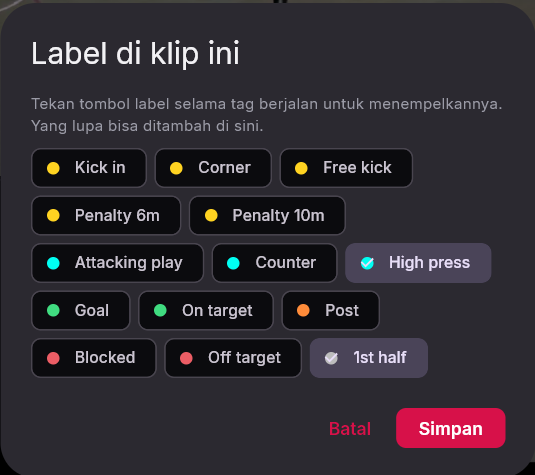
Forgot to press a label? Add it afterwards 2
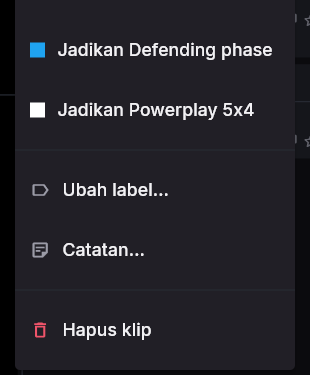
Clip menu > Edit labels..., then tick or untick the right labels. Handy for adding a player or a result that only became clear after the moment. Labels pressed while a tag runs still stick straight away, as usual.
Clip file names in your order 1
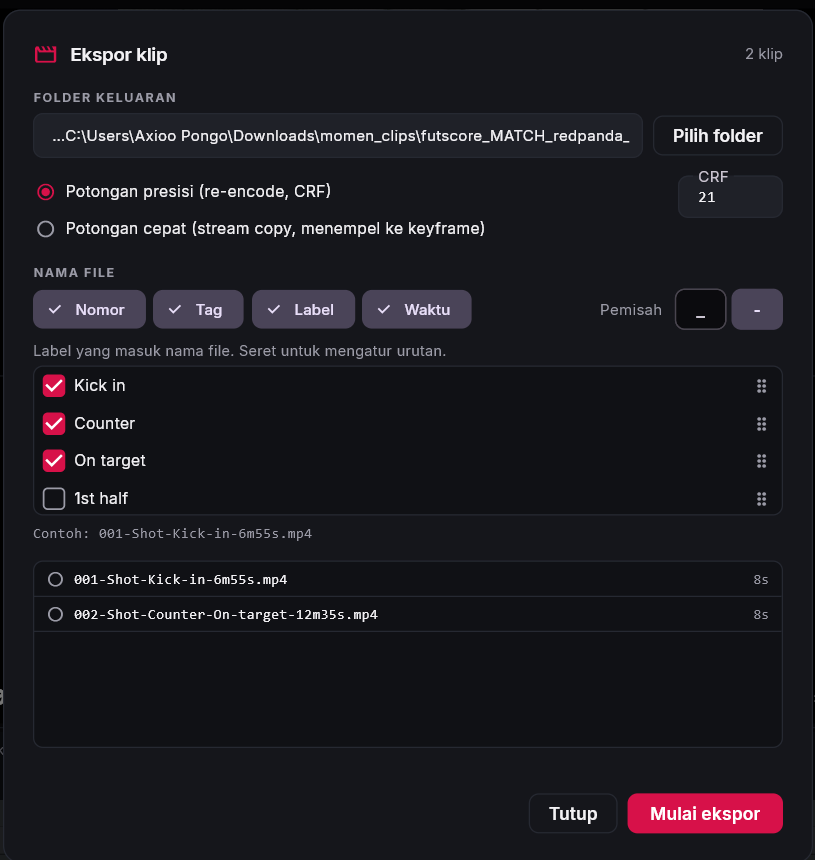
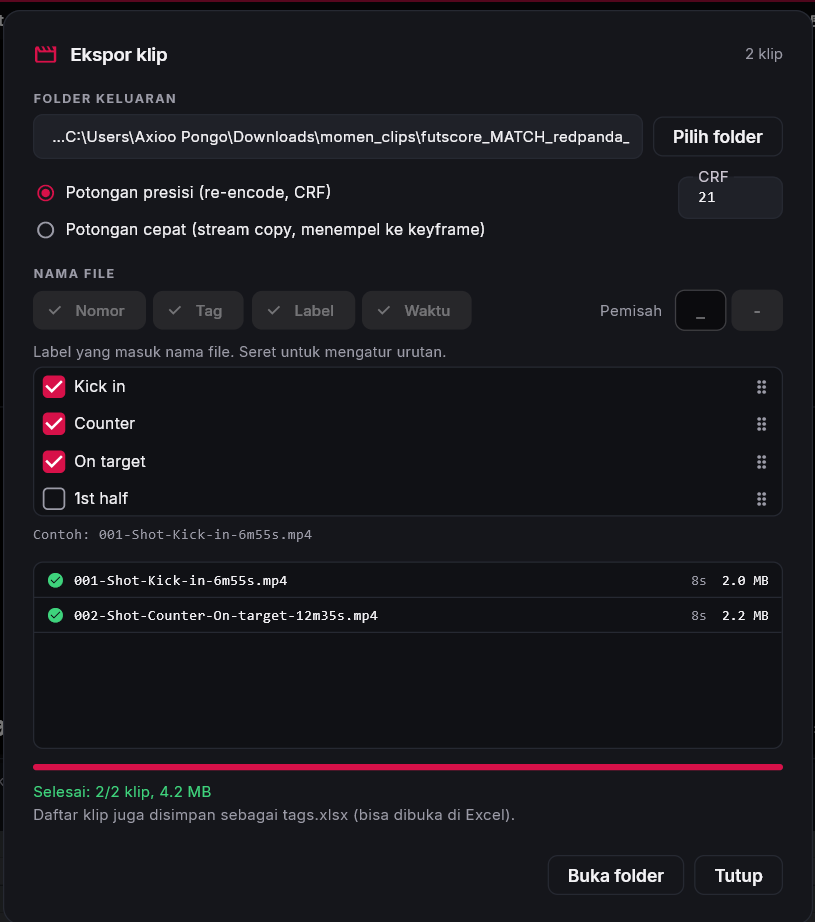
In the Export clips window, the File name section: switch on and drag the Number, Tag, Label and Time parts; pick the _ or - separator; pick which labels go in and their priority. You see an example right away, such as 001-Shot-Kick-in-6m55s.mp4, and your choices are remembered.
Every export also makes an Excel file 1
The export folder has a tags.xlsx: file name, tag, labels, start, end, duration, rating, star and note. It is Excel, not CSV, because on Windows set to Indonesian a CSV file often opens as one long column.
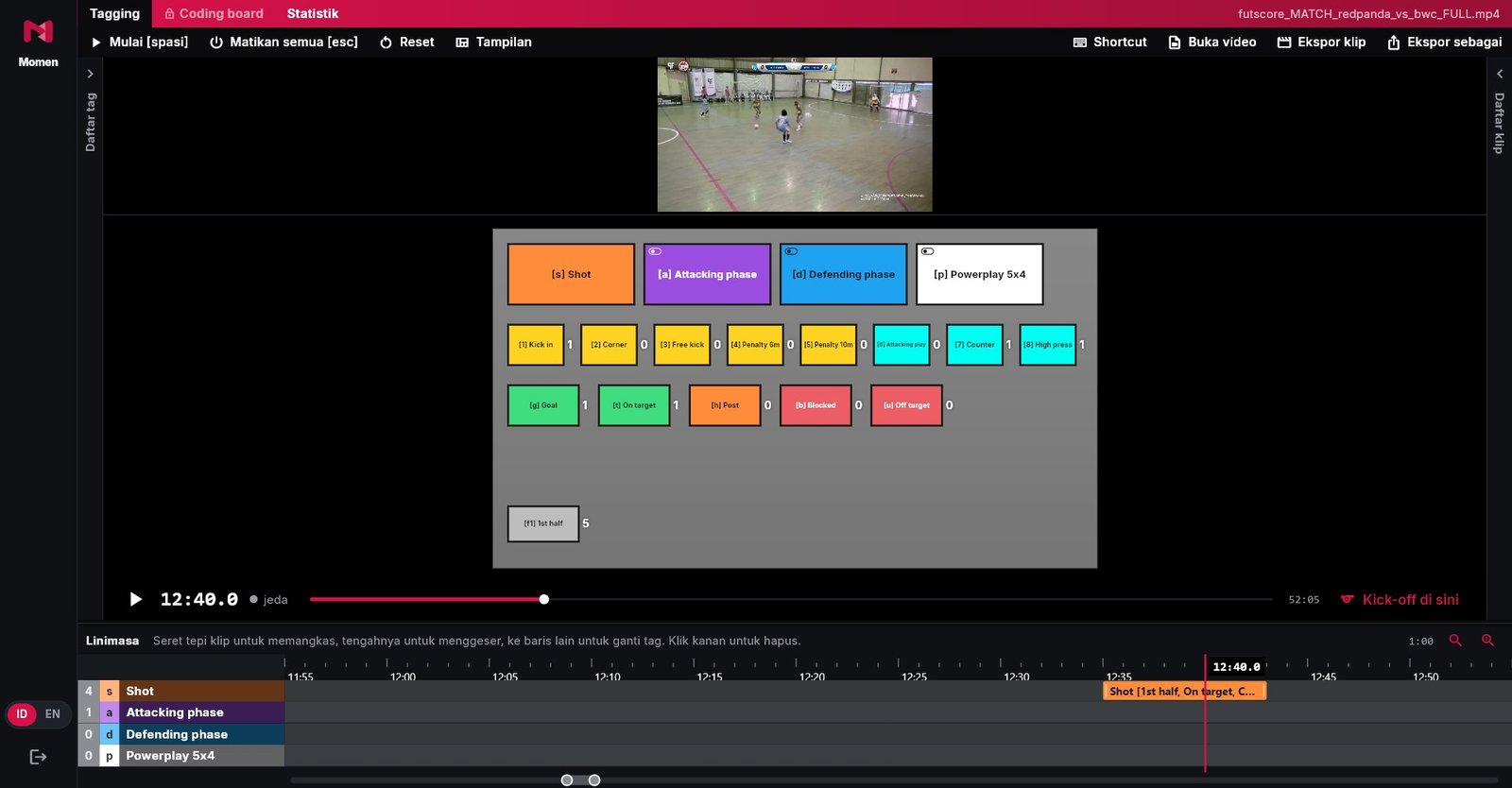
Big buttons for fast tagging 1
View menu > Big buttons: the tag list and clip list fold away, the video shrinks to the top, and the button board takes up almost the whole screen. Go back with All panels or Default layout.
0.1.4 Opening a video no longer looks stuck 28 September 2026
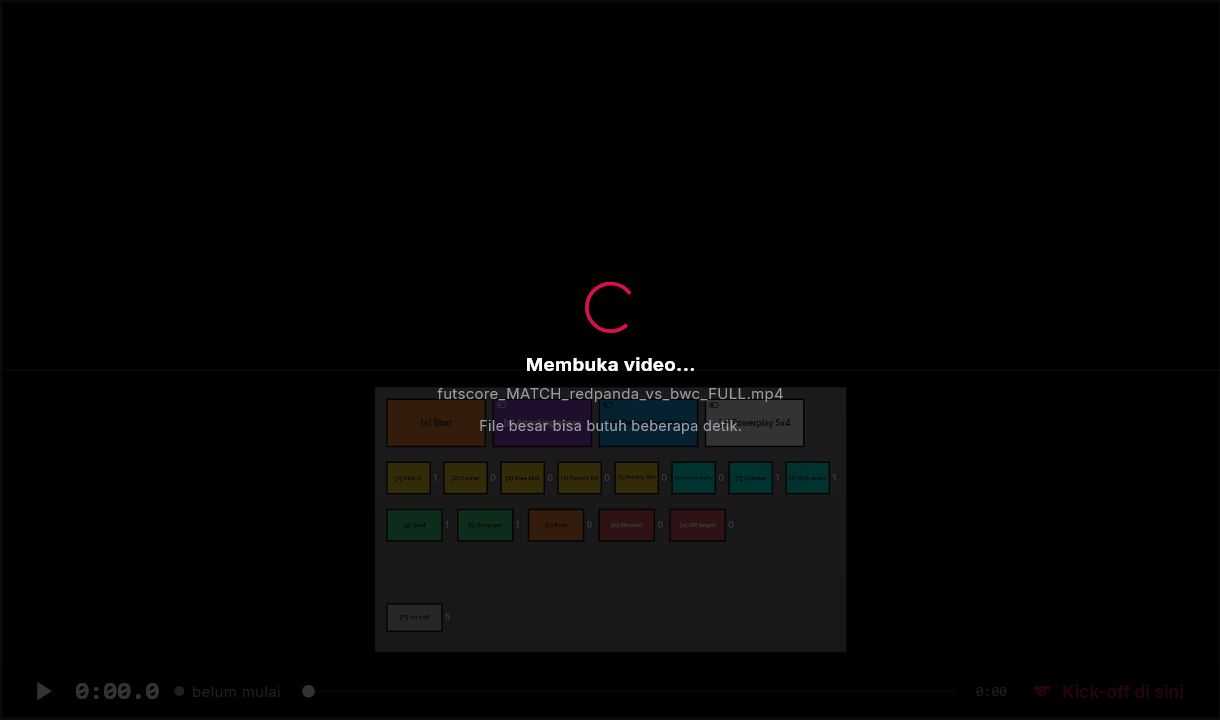
An "Opening video..." sign while a file opens 1
As soon as a video file is picked, an Opening video... sign appears with the file name, so it is clear Momen is working and not stuck. Large files open faster too: a 2 GB match video opens in about a second.
0.1.3 Fold away the panels you do not use 28 September 2026
Every panel can fold 1
The tag list, video, button board, clip list and timeline can fold into a thin strip. Drag the divider well past its smallest size, or use the View menu. Click the thin strip to open it again at its previous size.
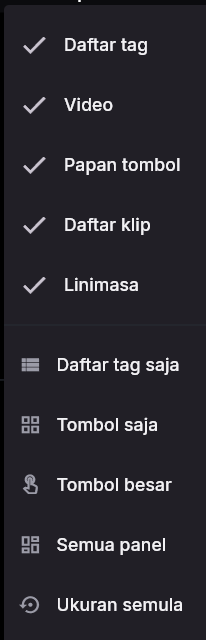
Quick choices in the View menu 1
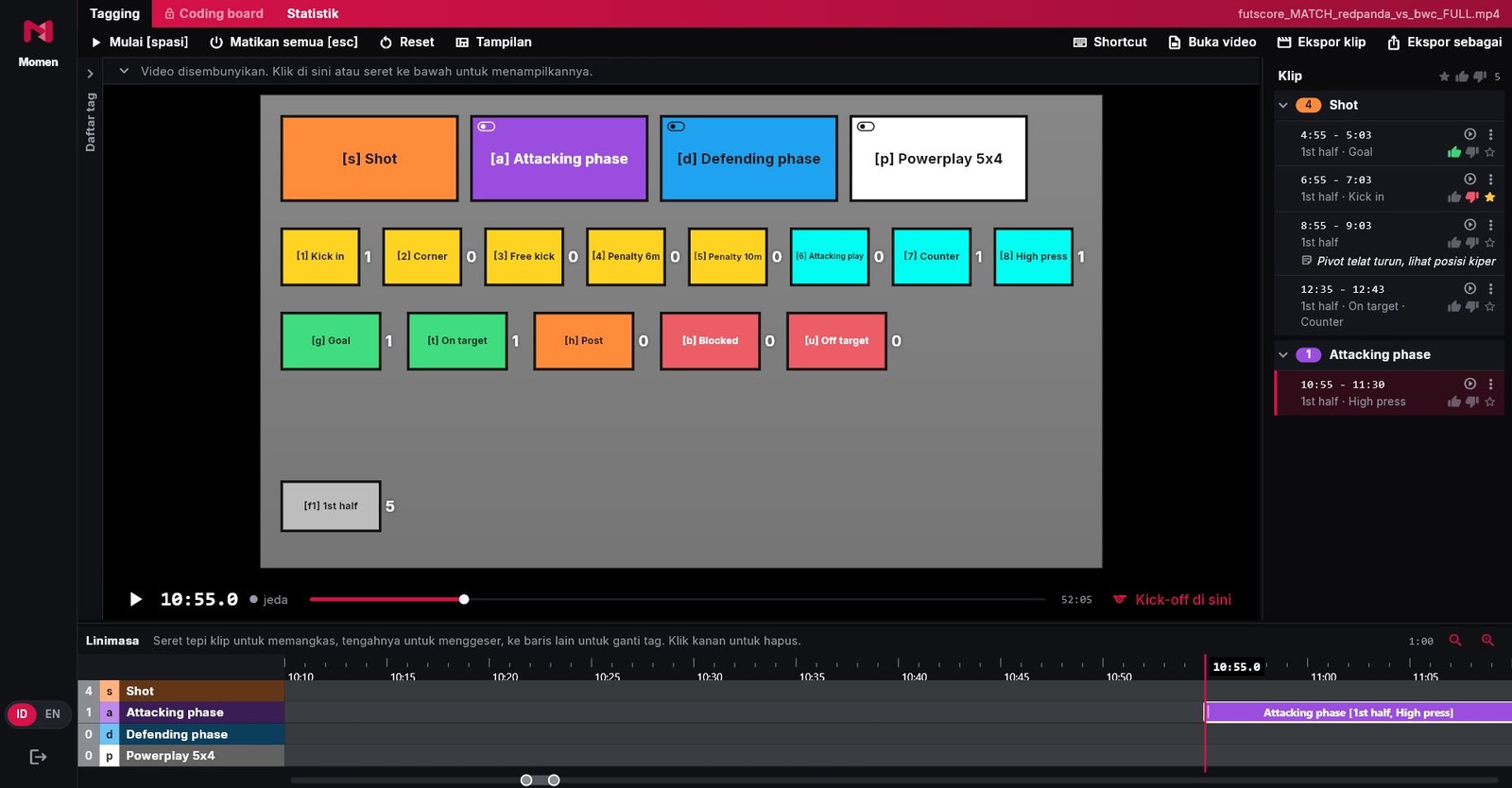
The View menu has ready-made choices: Tag list only, Buttons only, All panels and Default layout. Above them, each panel can be ticked or unticked one by one.
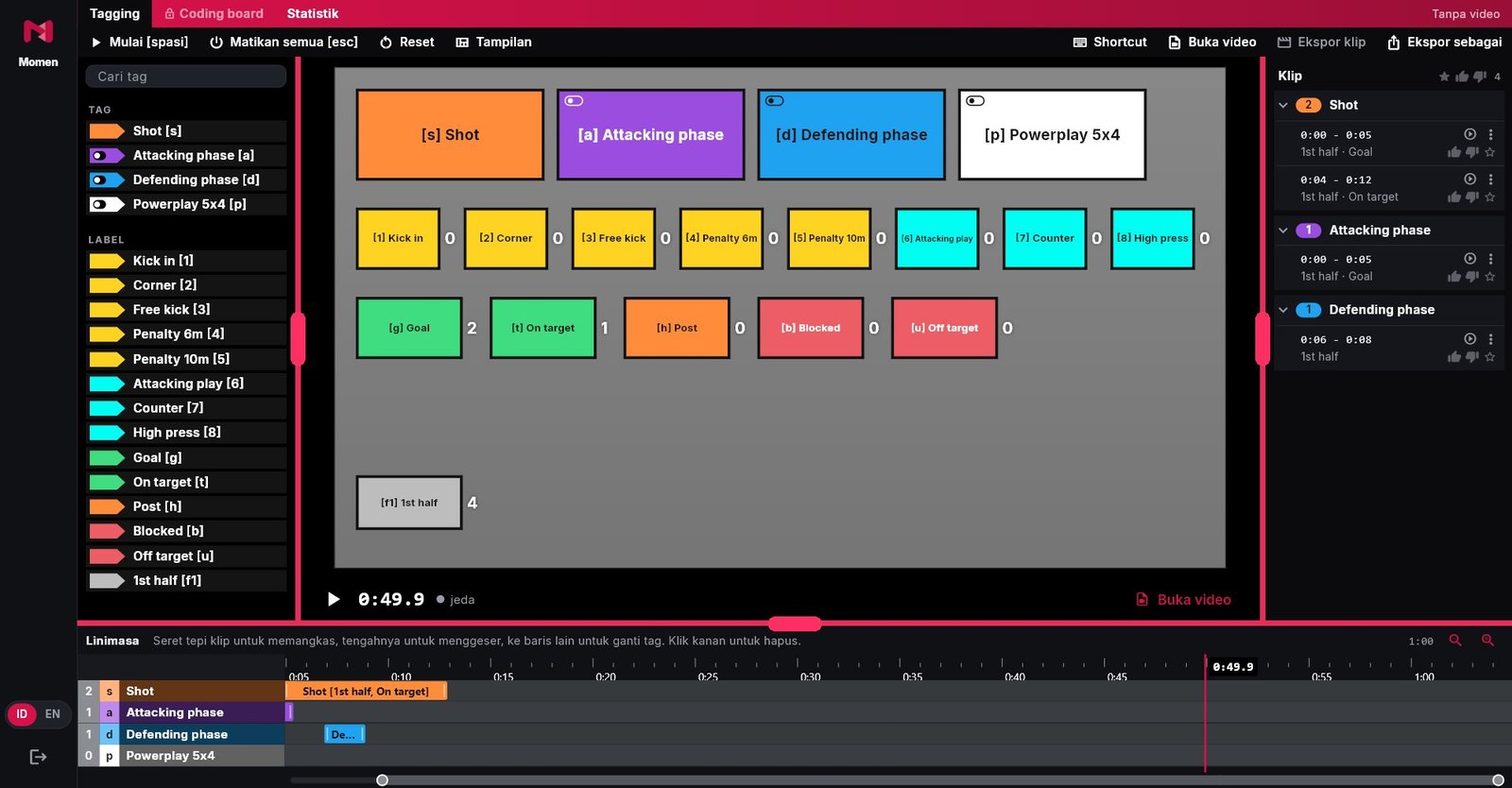
0.1.2 Arrange the layout like in Premiere 28 September 2026
Resizable panels 1
Drag the line between panels (marked red in the picture) to widen or narrow them. Double-click the line to go back to the default size. The sizes are remembered when Momen opens again.
The button board can fold 1
Drag the line above the button board far down, and the board folds into a single row. Keyboard keys still work, and the video gets more room. Click the row to open it again.

Timeline zoom 1
The bar under the timeline: drag it to scroll, pull its ends to zoom, double-click to see the whole match. Alt + scroll zooms too; on a MacBook, pinch the trackpad.

0.1.1 From the test team's feedback 28 September 2026
Tags save automatically
Every tag is saved straight away. If Momen is closed or the laptop dies, the last match comes back complete when you open it again: tags, video and kick-off point.
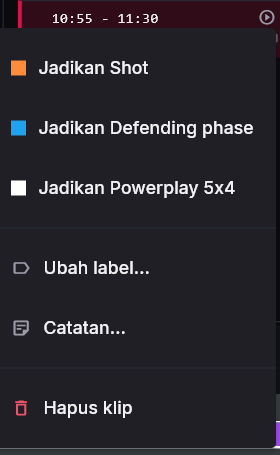
Wrong tags can be fixed 1
On the timeline, drag a clip to the right tag row. Or right-click the clip (or the ⋮ button in the clip list), then pick Change to ... to change the tag, or Delete clip.
Tag without video, sync later 1
Tag from the sideline first, open the video later. Move the video to the kick-off, then click Kick-off here: every tag lines up with the video at once. The kick-off point can be marked at any time, also after tagging.

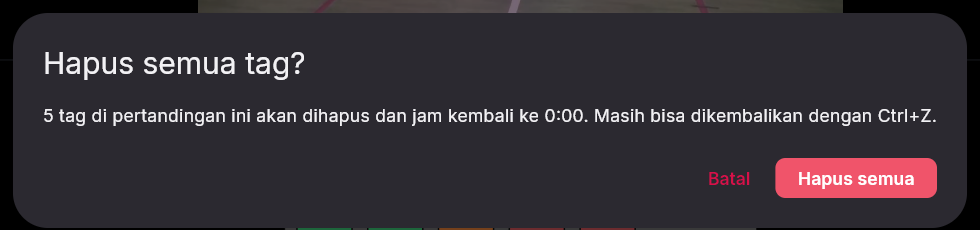
Reset asks first 1
The Reset button now asks first and says how many tags will be deleted. If it is too late, Ctrl+Z still brings everything back.
Stats use button names 1
The Stats page shows button names as they are on the board, not codes.
Momen updates itself
When there is a new version, a red bar appears at the top: click Update now. Only the parts that changed are downloaded, usually a few MB, and the download resumes by itself if the connection drops.
Runs on Intel MacBooks
The MacBook version now also runs on Intel MacBooks with macOS 12 or later, as well as MacBooks with Apple chips.
0.1.0 First test version 27 September 2026
Tag with the button board or the keyboard 1
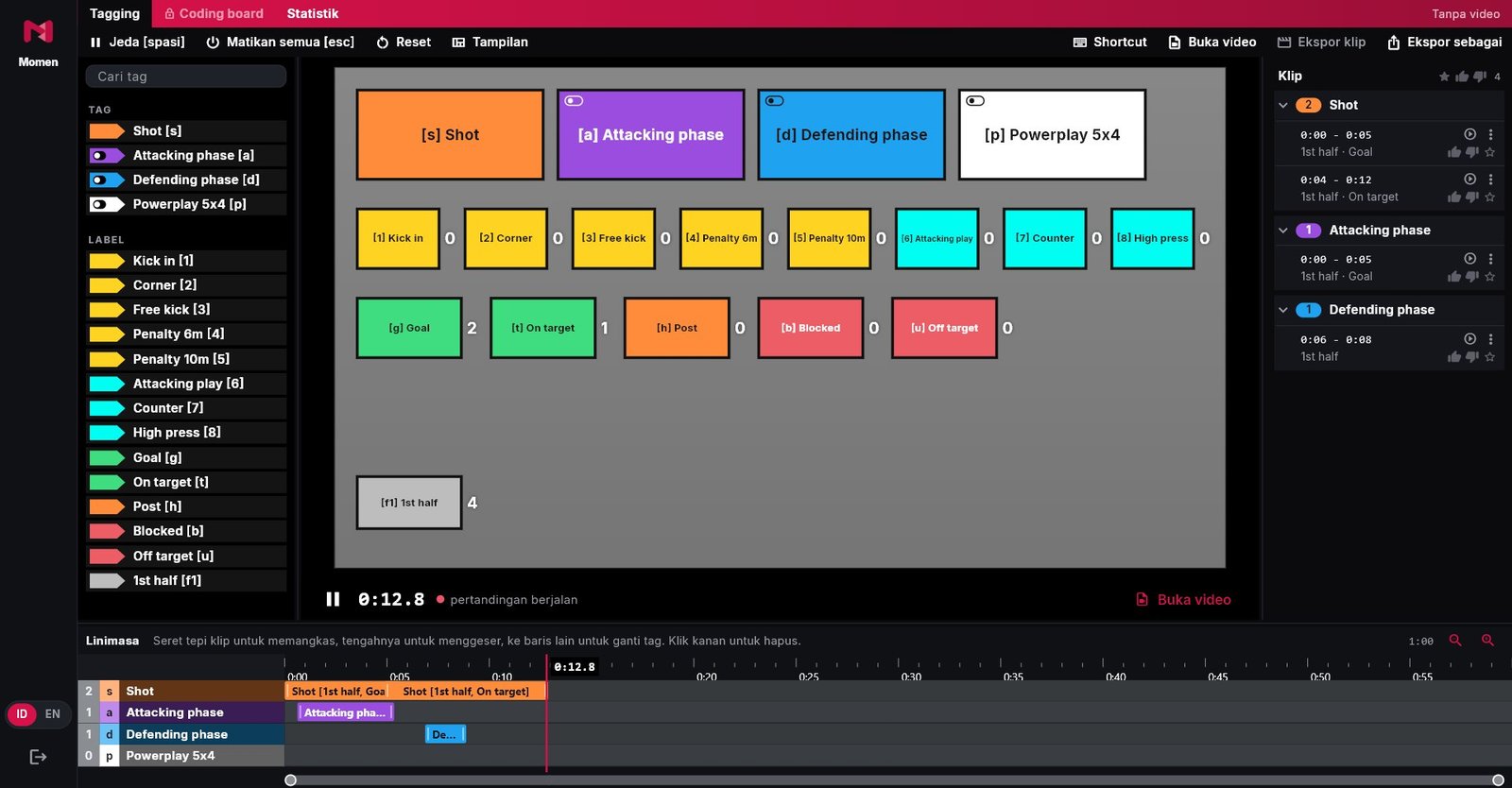
Every button on the board has a letter. Press the letter or click the button to mark a moment. Tag buttons make clips; label buttons add details to the running clip, such as the situation or the outcome.
Tag without video, from the sideline 1
Without a video file, Momen uses a match clock. Press Space at kick-off to start the clock, then tag as usual.

Click a clip, go straight to the moment 1
Click a clip in the list on the right or on the timeline: the video jumps straight to that moment. No more scrubbing through the video to find it.
Export clips 1
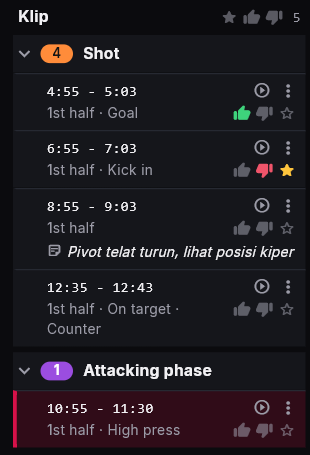
Export clips cuts every tag into video files, one file per clip, in the momen_clips folder next to the match video file.
The button board can be changed 1
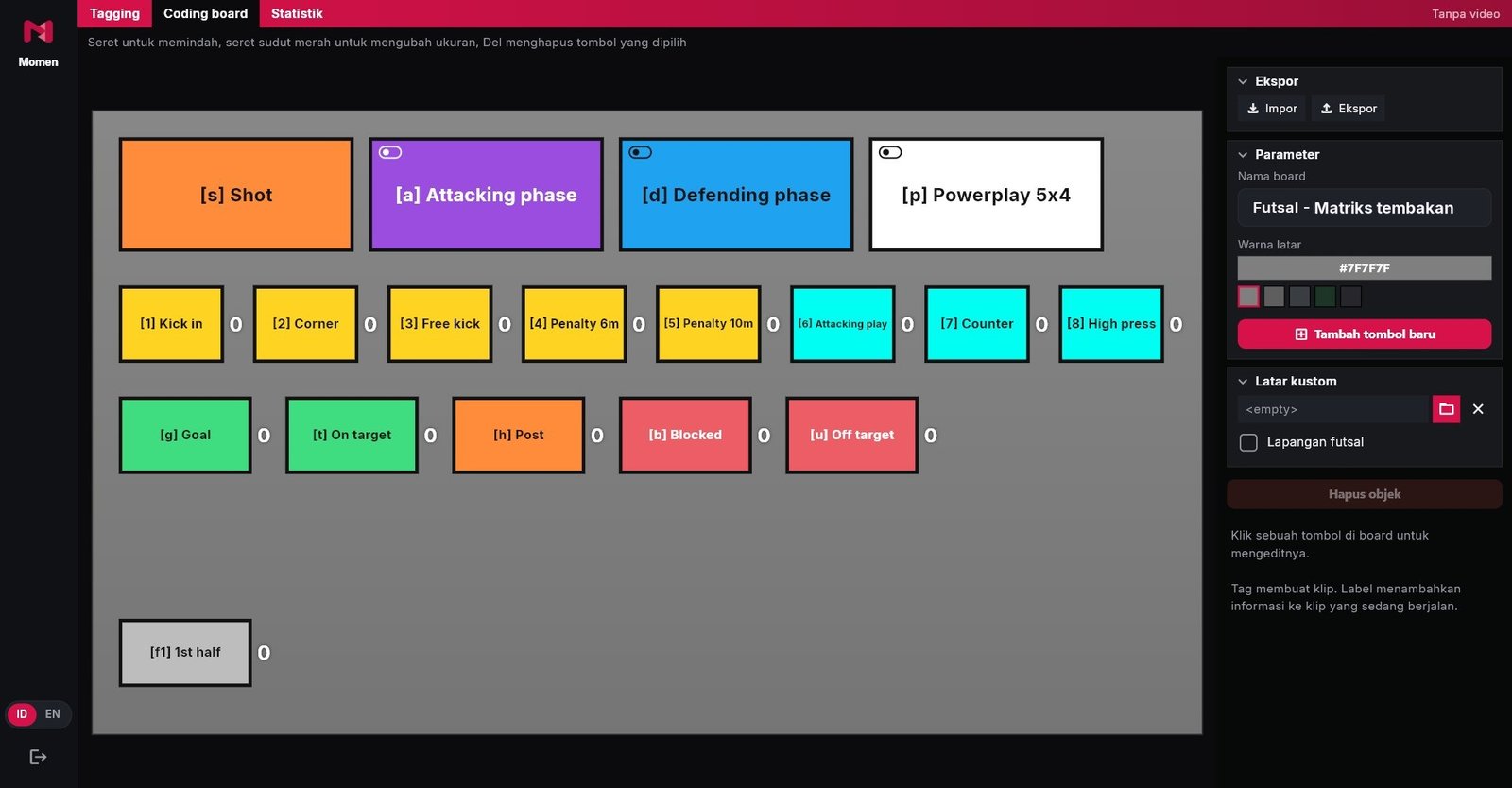
In the Coding board tab: drag buttons to move them, drag a corner to resize, change the name, letter and colour, or add a new button. Boards can be exported and imported for use on another laptop.
Indonesian and English 1
Pick ID or EN at the bottom left; the whole interface switches language at once.
